Starting a new document
Written pages are added from the Page tab, into any document you have open. To start from nothing:
- Open the editor and choose Blank pageThe start screen offers Upload, for a PDF you already have, and Blank page, which opens an empty Letter page.
- Choose Insert written pages on the Page tabThe blank page becomes a written page, with one-inch margins and the cursor already waiting at the top.
The text starts in Carlito at 11 points with 1.15 line spacing. Carlito has the same character widths as Calibri, the font Word starts new documents in, so a letter written here sets the way the same letter would in Word. Change any of it from the red Text tab, which stays open while you write.
Writing, and pages that follow the text
Type as you would in any word processor. Enter starts a new paragraph, an empty line is just an empty paragraph, and everything from the text box guide applies: per-word bold, italic, underline, and colour, highlighting, 22 fonts, alignment including justified text, and line spacing. Select text first to change it, or pick a style before you type.
The part that is different from placing text on a page is what happens at the bottom margin. When your writing reaches it, a new page is added after the current one and the text continues there, with the cursor following it. You never create pages yourself. In the other direction, when you delete enough that the last page is empty, that page is removed after a moment's pause, so backspacing across a page break does not make pages flicker in and out.
- Lines move to the next page wholeA line is never split across two pages. The line that would cross the bottom margin starts the next page instead.
- The cursor moves between pages naturallyThe arrow keys, Home and End, and Ctrl+End work across page breaks, and if the cursor moves to a page that is off screen, the editor scrolls to it.
- Click anywhere on a written page to type thereWith the Text tool, a click places the cursor at that point in the text. With the Select tool, double-click does the same. Clicking below the last line puts the cursor at the end.
- Undo takes back whole stretchesTyping becomes one undo step about a second after you stop. If that stretch added a page, one Ctrl+Z removes the text and the page together.
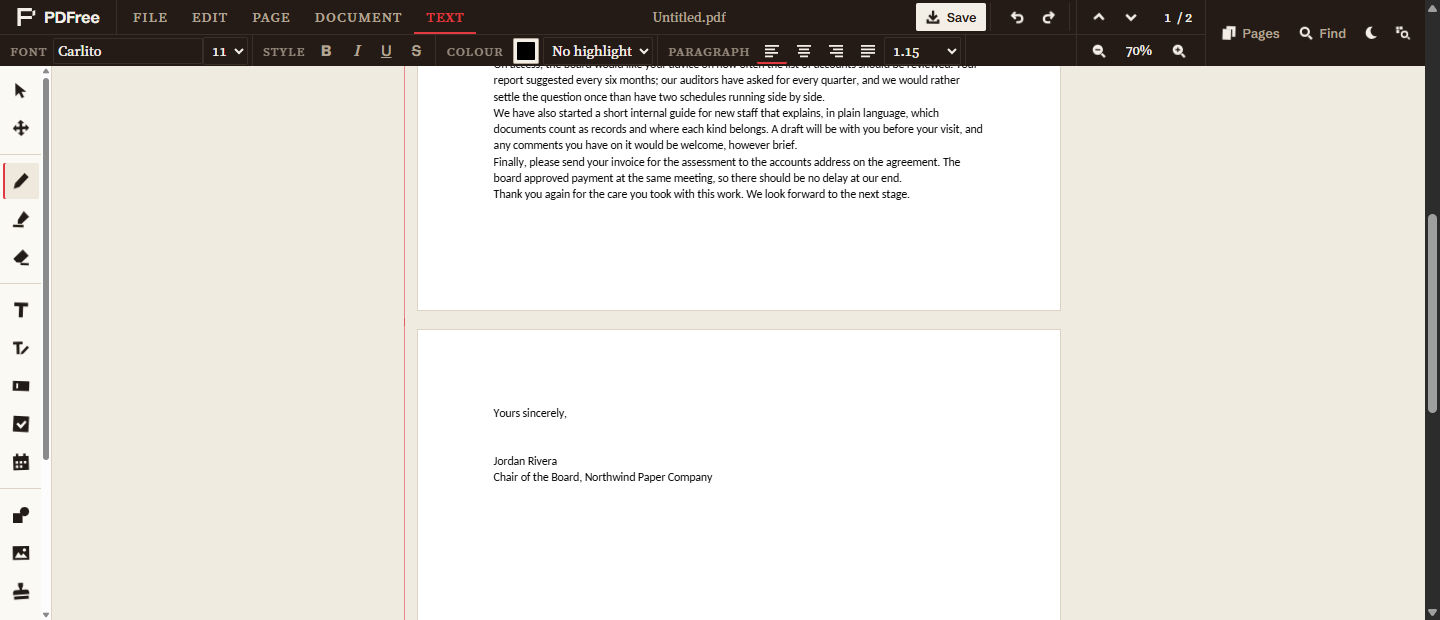
Written pages are still PDF pages, so every other tool works on them. You can draw with the pen, highlight, add a signature at the bottom, place a stamp, or drag out a separate text box with the Text tool for something that should sit outside the flow, such as a reference number in a corner. A page that has something drawn on it is never removed automatically, even if your writing no longer reaches it.
Adding written pages to an existing PDF
The same button works in any PDF you open. Insert written pages adds a page you can type on straight after the current page, at the same size as that page. On an empty page it writes on that page instead of adding one. The pages after it simply move down. This is the quick way to put a cover letter in front of a form, a note between two documents you have merged, or a summary page at the end of a report.
The written pages grow and shrink exactly as they do in a new document, and you can add more than one written section to the same PDF. If you insert written pages while you are on a page that is already written, the new section goes after that whole section rather than splitting it in two.
Page size, margins, and orientation
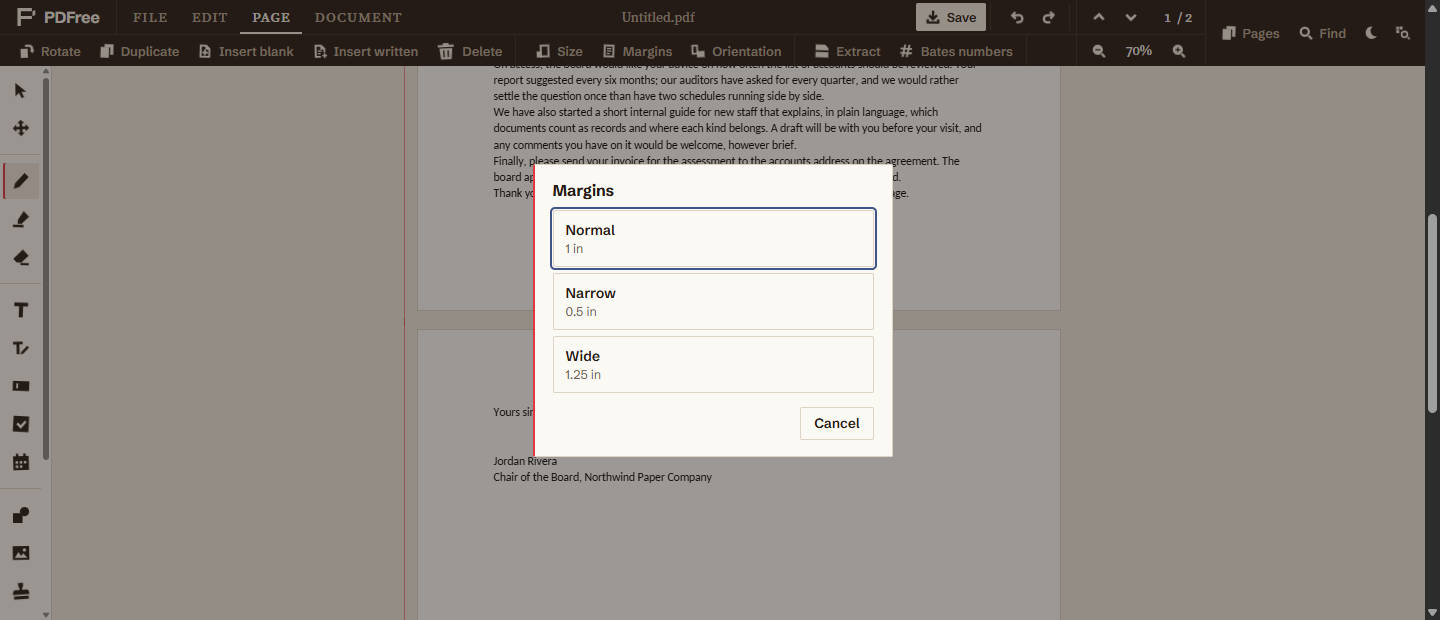
Also on the Page tab, the Layout group has three buttons that set up the written section you are in:
- Size: Letter (8.5 × 11 inches), A4 (210 × 297 mm), or Legal (8.5 × 14 inches).
- Margins: Normal (1 inch), Narrow (0.5 inch), or Wide (1.25 inches) on every side.
- Orientation: portrait or landscape.
Changing the size or orientation rebuilds the section's pages at the new size and reflows the text into them, adding or removing pages as needed. Changing the margins only reflows. Each change is a single undo step, so trying a layout and taking it back is one Ctrl+Z. The buttons only apply to written pages; used anywhere else they say so rather than resizing a page of someone else's PDF.
How page tools treat written pages
The pages of a written section belong together, because the text runs through all of them. The page tools respect that, so a document can never end up with half a letter:
- Delete on any written page offers to delete the whole section, and says which pages that is.
- Moving a written page, from the Pages sidebar, moves the whole section. Dropping another page into the middle of a section puts it before the section instead.
- Duplicate copies the whole section as a new, separate one, so editing the copy never changes the original.
- Rotate leaves written pages as they are and points you to Orientation instead, which turns the page and reflows the text so it still reads upright.
The written text itself is not an object you can select, drag, or erase. Select-all followed by Delete, a drag-to-select box, or the eraser all leave your writing alone, which protects a long letter from one mistaken shortcut.
Saving, and opening the file again
Save writes a standard PDF. Your writing goes in as real text, in the fonts you chose with only the letters you used embedded, so the file is small, sharp at any zoom, and can be searched, selected, and copied by whoever receives it, like any PDF of typed text.
While you are working, the editor keeps your document in this browser's own storage, so closing the tab by accident is not a disaster: the start screen offers to continue where you left off, with the written pages still flowing. Once you have saved and closed it, though, the file you open next time is an ordinary PDF. Its text can still be changed with the Edit Text tool, paragraph by paragraph, but it no longer reflows across pages.
Nothing you write is uploaded at any point. The page is created, typed on, and saved inside your browser.
What is not supported yet
This is built for letters, notices, and short documents, and it leaves out the parts of a word processor those rarely need. Not available yet:
- Headings with styles, bullet lists, and numbered lists.
- Page numbers, headers, and footers.
- Manual page breaks, columns, and tables.
- Pictures inside the flowing text. You can still place an image anywhere on a written page with the Image tool; it just does not move with the text.
For a long, structured report, a word processor is still the better tool, and its PDF export can be opened here for everything else this editor does. For a page or three of plain, well-set writing, this is quicker, and it never asks you to make an account.