There are two different jobs that both get called "adding text to a PDF". One is adding something new on top of the page: an annotation, a reference number, a line of explanation, a reply in the margin. The other is changing words that are already printed in the document, such as a typo in a contract or a wrong date. This guide is about the first job. The second has its own guide on editing the text already in a PDF, because the problem underneath is different: new text sits on top of the page, while edited text has to replace words the page already draws.
Placing a text box
Text you add lives in a text box. Choose the Text tool from the left-hand toolbar (or press T), then either click or drag on the page. The two gestures make two kinds of box, and picking the right one saves fiddling later.
- Click for a box that growsA single click starts a box at that point. It has no fixed width: it widens as you type, and only starts a new line when you press Enter. This is the one for short things like a date, initials, or a reference number.
- Drag for a box that wrapsDragging across the page sets the width first. Text then wraps inside that width like a paragraph in a word processor. Use this for anything longer than a line, such as a note in a margin or a paragraph under a heading.
- TypeThe cursor is already in the box. Enter starts a new paragraph, Tab inserts four spaces, and the usual shortcuts work: Ctrl+A selects everything in the box, Ctrl+B, Ctrl+I and Ctrl+U toggle bold, italic and underline, and Ctrl+Z undoes.
- Press Escape when you are doneThe box stays selected so you can move it straight away. Clicking anywhere else on the page also finishes it.
Undo treats typing sensibly. A burst of typing becomes one undo step about a second after you stop, so Ctrl+Z takes back the last stretch you wrote rather than one letter at a time. Undoing the very first stretch in a new box removes the box with it, since an empty box is never kept: an accidental click with the Text tool leaves nothing behind.
Styling the text
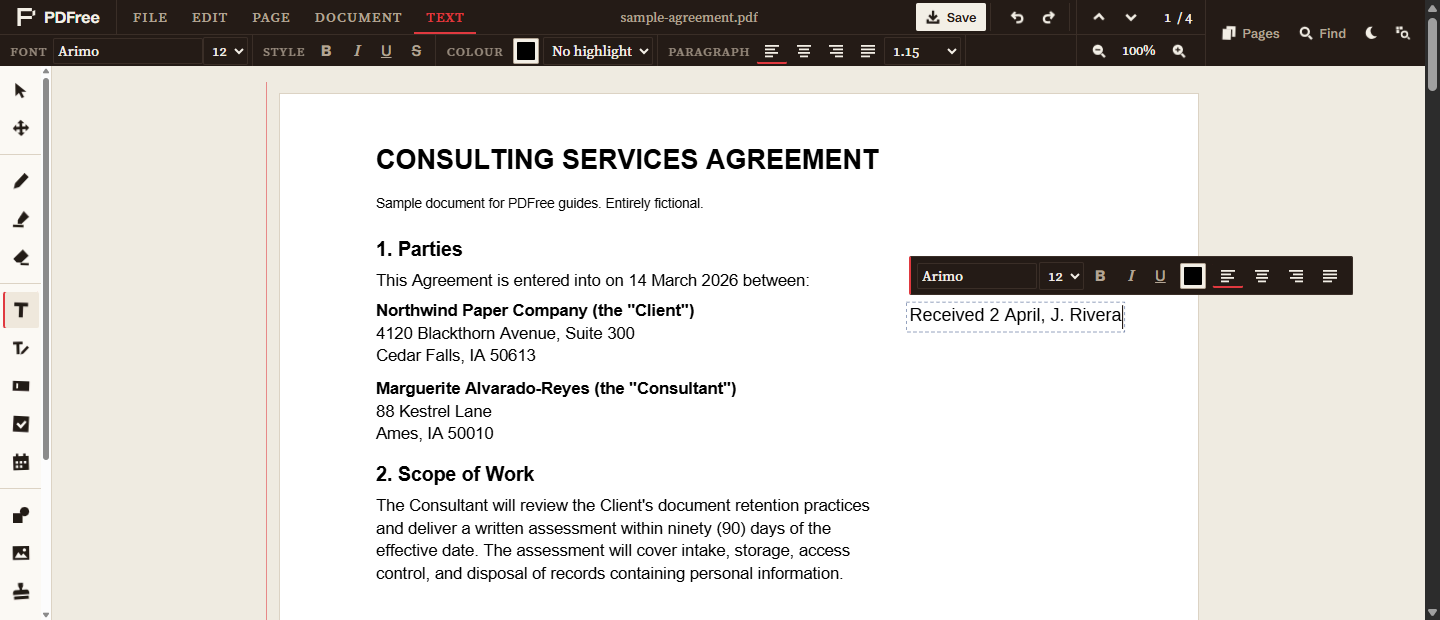
While a box is being edited, a red Text tab opens in the header with every control, and a smaller floating bar appears just above the box with the ones you reach for most. They do the same thing, so use whichever is closer to your mouse.
Styles work per character, exactly as in a word processor. Select a word or a phrase and apply a style, and only that selection changes. With nothing selected, a style applies to what you type next, so you can switch bold on, type a heading, switch it off, and carry on. The Text tab offers:
- Font and size: any of the 22 families described below, at any size.
- Style: bold, italic, underline, and strikethrough.
- Colour: the text colour, plus a highlight behind the words in yellow, green, blue, pink, or orange.
- Paragraph: left, centred, right, or justified alignment, and line spacing of single, 1.15, 1.5, or double.
New boxes start in the font, size, and colour you used last, which is what you want when you are adding a dozen notes to the same document. Bold and highlight deliberately do not carry over: they are almost always meant for one phrase, not for everything you type afterwards.
Choosing from 22 fonts
The font box lists 22 families in six groups: Compatible, Sans, Serif, Display, Handwriting, and Mono. Each name in the list is drawn in its own typeface, so you can see what you are choosing before you choose it.
The Compatible group matters most for business documents. These five fonts are built to have exactly the same character widths as the fonts Microsoft Office uses, so text set in them takes up the same space as the original would:
- Arimo matches Arial.
- Tinos matches Times New Roman.
- Cousine matches Courier New.
- Carlito matches Calibri.
- Caladea matches Cambria.
If a document was written in Word with Calibri, adding your note in Carlito makes it look like it belongs. The other groups cover the rest: clean sans-serifs such as Inter and Open Sans, book serifs such as EB Garamond and Libre Baskerville, two display faces, three handwriting faces for something that should look written rather than typed, and a monospace for codes and reference numbers.
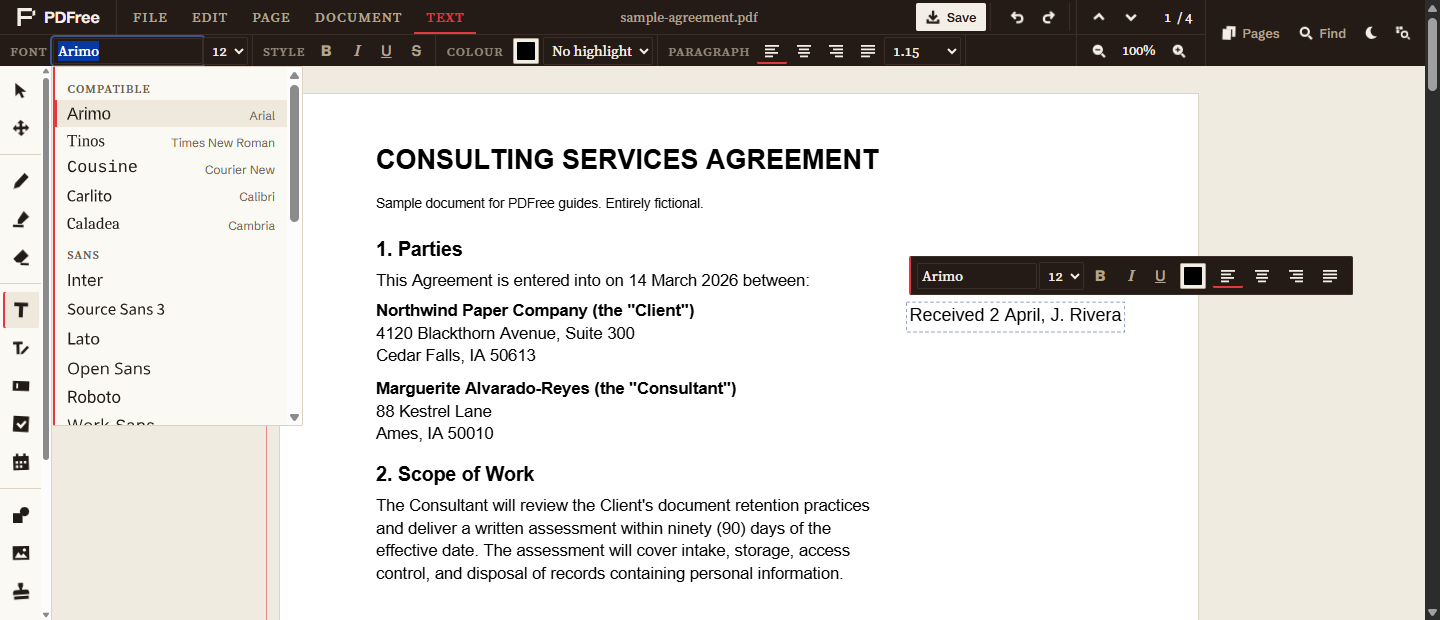
Every font is served by this site itself, and a family is only downloaded the first time you actually use it. The previews in the list are drawings, so opening the menu downloads nothing. Nothing about your document is sent anywhere to get a font: the text you type never leaves your browser.
Moving, resizing, and editing again
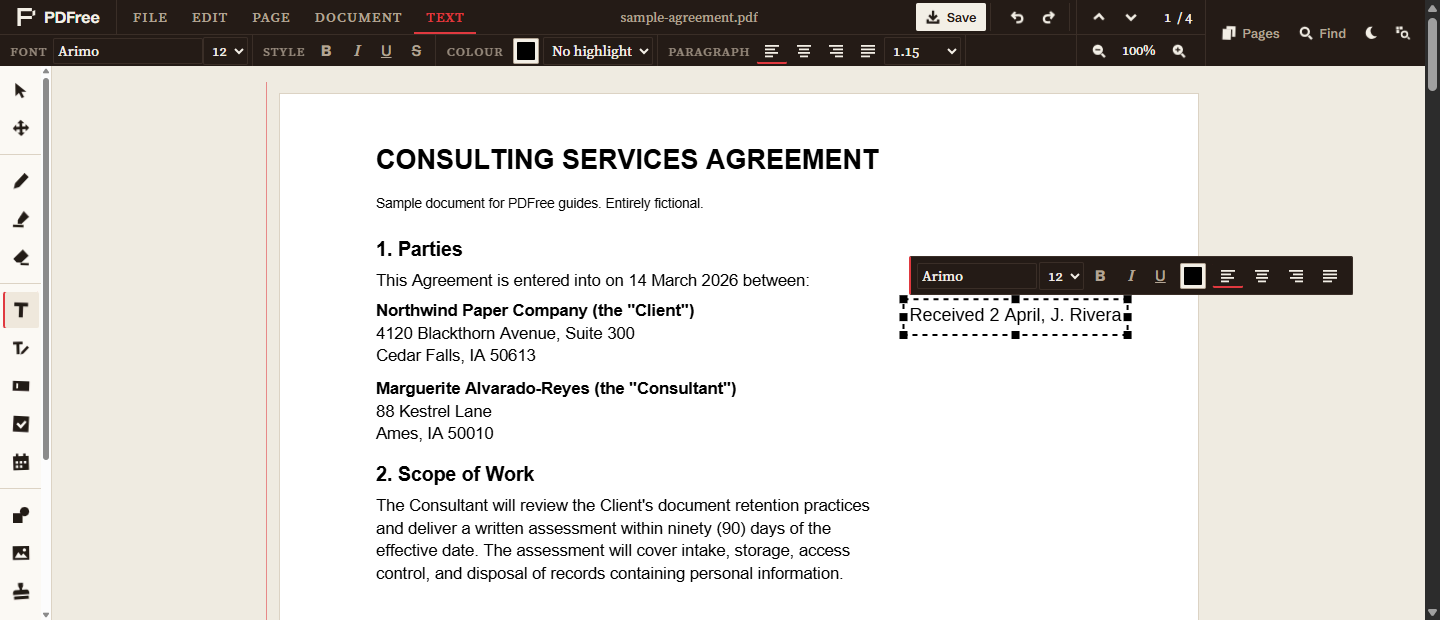
A finished box behaves like any other object on the page. With the Select tool, drag the box to move it. The handles on its left and right sides change its width, and the text re-wraps to fit as you drag, which also turns a growing box into a wrapping one. Selecting several objects together and resizing the group scales the text size along with everything else.
To change the words, click the box with the Text tool or double-click it with the Select tool; the cursor lands where you clicked. Delete removes a selected box, and every move, resize, and edit can be undone.
What gets saved
This is where text boxes differ from most free PDF tools. When you save, your text is written into the PDF as real text, in the same fonts and at the same positions you saw on screen. It is not a picture of text. That has three practical consequences:
- It stays sharp at any zoom and prints crisply, because it is drawn from the font, not from pixels.
- Anyone opening the file can select it, copy it, and find it with their viewer's search.
- The file stays small, because only the letters you actually used are embedded from each font.
Pages you have rotated still get upright text, and if a page has to be flattened into an image (a page with a redaction on it, for example), your words are kept in the invisible text layer that page carries, so they remain searchable.
The letters are spaced from each font's own widths, without kerning, in the editor and in the saved file alike. The point is that what you see while typing is exactly what the file contains, with no surprise reflow when someone else opens it.
What is not supported yet
Text boxes cover everyday Latin-script writing well. A few things are deliberately left out for now:
- Spell-check. Typing goes through a hidden input so the editor can draw the text itself, and that means the browser's red underlines do not appear.
- Emoji, Chinese, Japanese, Korean, Arabic, and Hebrew. None of the 22 fonts covers them. A character that no font has shows as a question mark, and the editor tells you so, rather than saving something unreadable.
- Lists and tables. Bullets and numbering are not built in yet; a hyphen at the start of each line works in the meantime.
For filling in the blanks of a form, the fill and sign guide covers the PDF's own form fields and the tools made for form lines. For writing whole pages rather than notes on a page, see writing a document from scratch, where the text flows from page to page on its own.