The two kinds of PDF form
Before you do anything, work out which kind of document you are holding, because the right approach is completely different for each.
An interactive form was built with real form fields, called AcroForm fields in the spec. Click one and you get a cursor. Tab moves you to the next. These are the good ones. Government forms, bank paperwork, and anything produced by a proper forms tool usually work this way.
A flat form is just a picture of a form. It might be a scan, a printout that was re-scanned, or an export that discarded the field layer. Clicking does nothing because there is nothing to click. This is the majority of forms people are actually sent.
The test takes one second: open the PDF and click where you would expect to type. If a text cursor appears, it is interactive. If nothing happens, it is flat.
Filling a form that has real fields
If the PDF has its own fields, use them. Typing into a real field is better than painting text on top, because the value is stored as the field's value and lands exactly where the form's author intended, at the right size and alignment.
In PDFree these are handled by the Select tool, which catches people out. Select is not only for moving things around: when it is active, the editor detects the PDF's own text fields and checkboxes and overlays live inputs on top of them, so you can click and type directly.
- Open the PDF and choose the Select toolThe form's real fields become editable as soon as Select is the active tool.
- Click a field and typeMulti-line fields accept multiple lines. Checkboxes toggle on click.
- Zoom or rotate freelyValues you have already entered survive a re-render, so changing zoom will not wipe your work.
- Save when you are doneThe values are written with the PDF's own form API and then flattened into the page.
Flattening turns your entries into part of the page rather than leaving them as live, editable field values. That means the recipient sees exactly what you typed and cannot accidentally alter it, and no viewer can decide to render your entries differently. It is the behaviour you want for anything you are sending to another person.
Filling a flat or scanned form
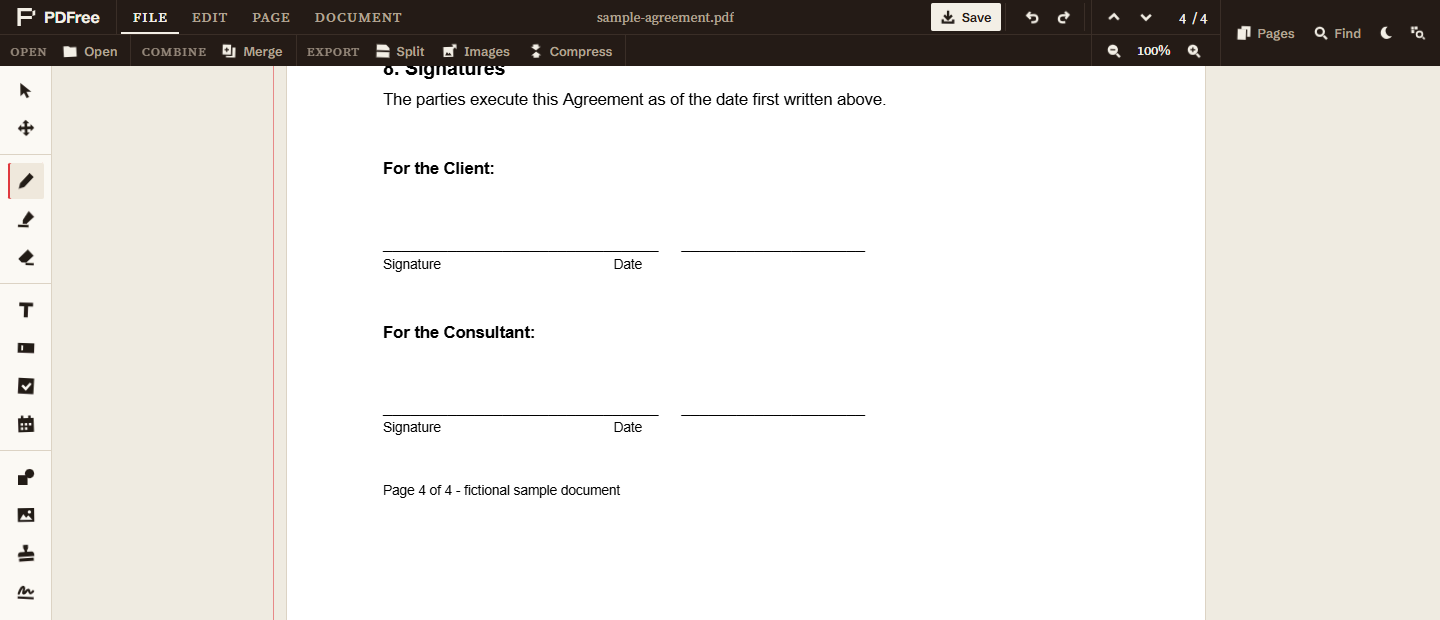
When there are no fields to fill, you place your own content on top of the page. This sounds worse than it is: done carefully the result is indistinguishable from a typed form, and it is exactly what Acrobat's own fill and sign feature does.
- Use the Text tool for anything you typeClick where the answer belongs and type. Position it so the text sits on the line rather than through it. A text box also wraps longer answers and lets you pick the font.
- Use the Checkbox tool for tick boxesPlace it over the printed box and set it checked. It is cleaner than drawing an X freehand and stays aligned.
- Use the Date Stamp tool for datesIt inserts today's date in a chosen format, which avoids the classic mistake of writing last year's date in January.
- Zoom in before you place anythingAlignment errors that are invisible at fit width are obvious at 150 per cent, and obvious to whoever receives the form.
- Use the Text Field tool for blanks someone else fills inDrag a box over each blank. When you save, every box becomes a real form field that the person you send it to can click and type into in any PDF viewer. Anything you typed into a box first becomes its starting value.
If the form is a scan and you want the text to be searchable afterwards, run OCR on it first. That gives the page a real text layer, so the finished document can be searched and copied rather than just looked at.
Adding your signature
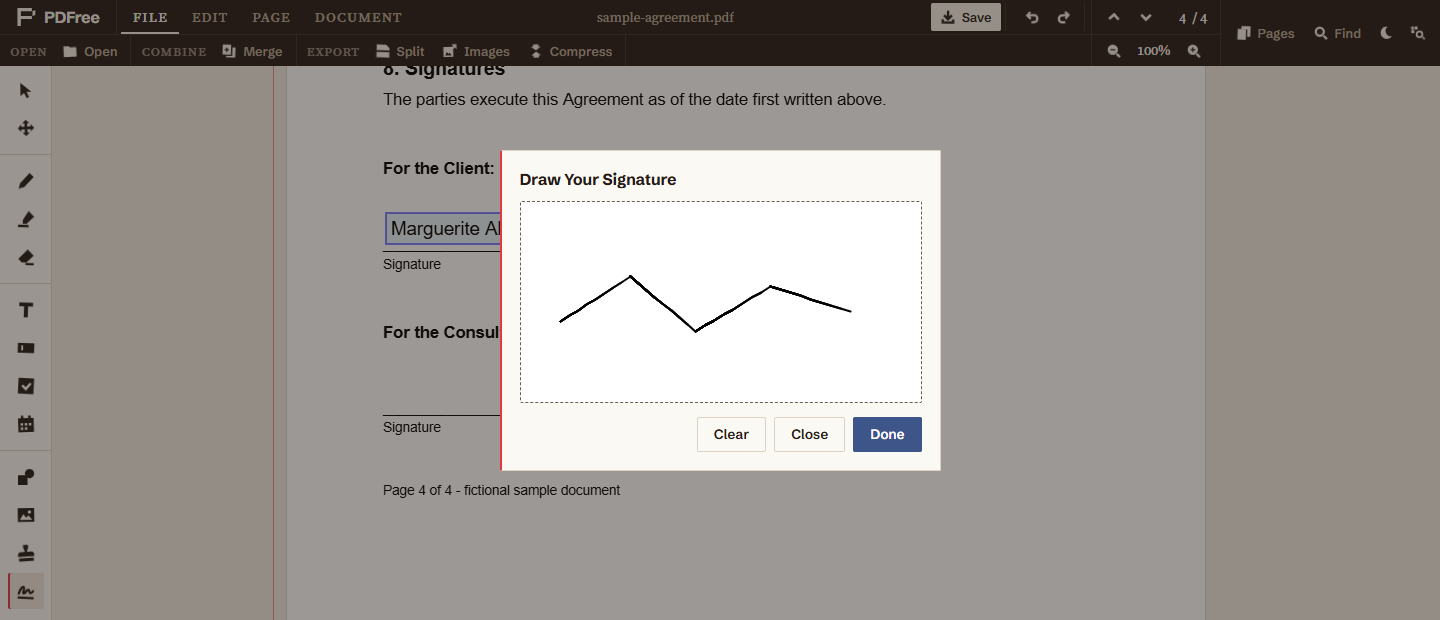
The signature tool opens a drawing pad. Sign with a mouse, a trackpad, or a finger on a touch screen, and the result is captured as an image you can then place, move, and resize anywhere in the document. Draw it once and reuse it on every page that needs it rather than redrawing each time, which also keeps it consistent.
Practical advice that matters more than the tool: sign slowly. A signature drawn at normal writing speed with a mouse looks wrong, because a mouse cannot follow a fast curve. Draw it deliberately, larger than you need, then scale it down when you place it. Shrinking hides wobble; enlarging advertises it.
A drawn signature is an image of your handwriting. It is what almost every day-to-day form actually asks for, and it is legally sufficient for most agreements in most places. It is not the same thing as a cryptographic digital signature, which binds an identity certificate to the document and proves it has not been altered since. If a process specifically requires a certified digital signature, this is not that, and you should use a tool built for it.
What is not supported yet
Being straight about the gaps, because finding out halfway through a form is worse than knowing now. Interactive form support currently covers text fields, including multi-line ones, and checkboxes. Radio button groups and dropdown fields are not handled yet.
If your form uses radio buttons or a dropdown, everything else on the form still works. For those specific controls, fall back to the flat-form approach above and place a checkbox or text on top of the control. The saved document will look correct, since the entries are flattened into the page either way.
Saving and what the recipient sees
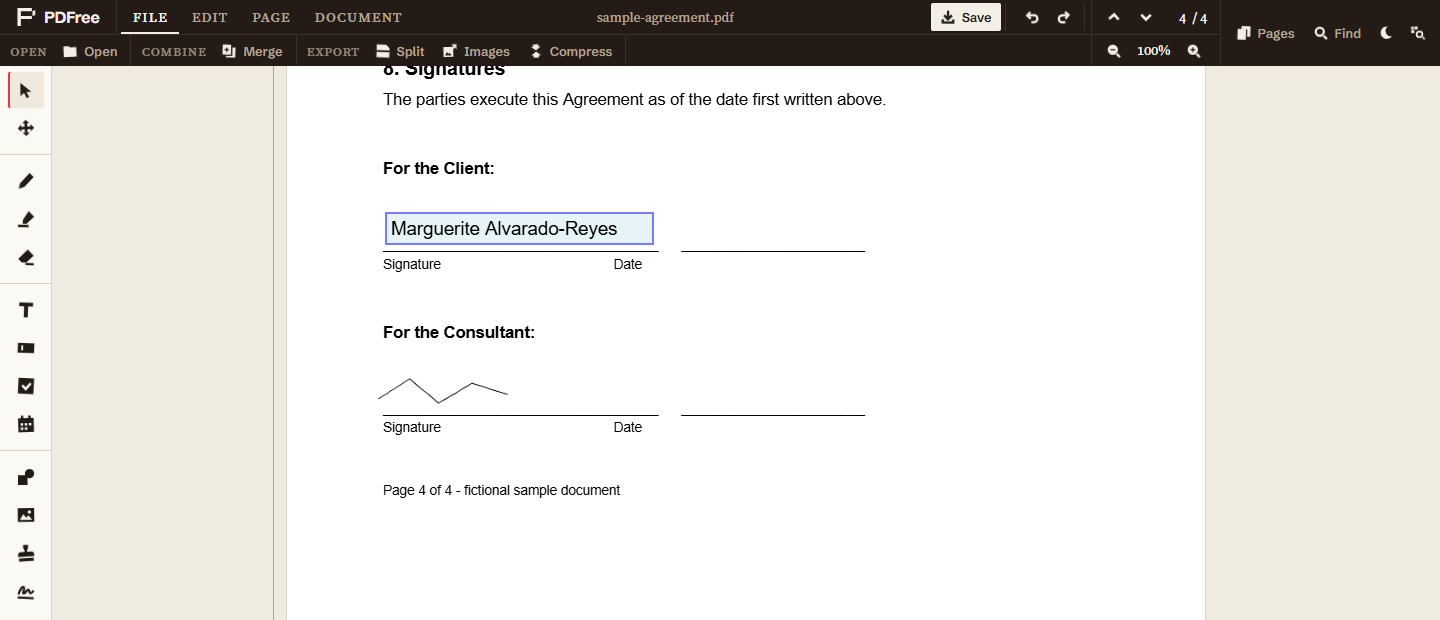
Save downloads the finished PDF to your machine. Your entries are baked into the pages, so the person receiving it sees a completed form, not a form plus a layer of notes they might be able to move or delete. The one exception is Text Field boxes: those are saved as fillable fields on purpose, so the recipient can type into them.
Worth repeating because it is the part that matters for tax forms, HR paperwork, and anything with a bank account number on it: none of this uploaded. The document was opened, filled, signed, and saved on your own device, so the only copy that ever existed outside your machine is the one you choose to send. That is covered in more detail in the guide on why that architecture matters.