Why a scan has no text
A normal PDF stores text as text: characters, positions, and the fonts to draw them with. That is why you can select a sentence and copy it.
A scanned PDF stores a photograph of a page. To your eye the words are right there. To the file they are a grid of coloured pixels with no more meaning than a picture of a beach. There is nothing to select because there are no characters, only the appearance of characters.
Everything people find frustrating about scans follows from this one fact. Search finds nothing. Copy produces nothing. Screen readers have nothing to read. The text-based tools in any PDF editor have no text to work with.
What OCR actually produces
Optical character recognition looks at the image, identifies shapes as characters, and works out what the words are and where each one sits on the page.
What it does not do is replace the picture. The scan stays exactly as it is, and the recognised words are written on top as an invisible text layer, positioned over the matching image of each word. The page looks completely unchanged, and now has real text you can interact with sitting in perfect registration over the picture of it.
This is the same technique used to re-add kept text after a redaction, and it is why the document still looks like the original scan rather than a retyped approximation of it. Nothing about the appearance is reconstructed or guessed.
Running OCR
The engine is not bundled with the site. It is downloaded the first time you use OCR, roughly 15 MB, and then runs locally. The download is the engine itself, not your document: the scan is never uploaded at any point.
- Open the scanned PDFIt loads locally like any other file.
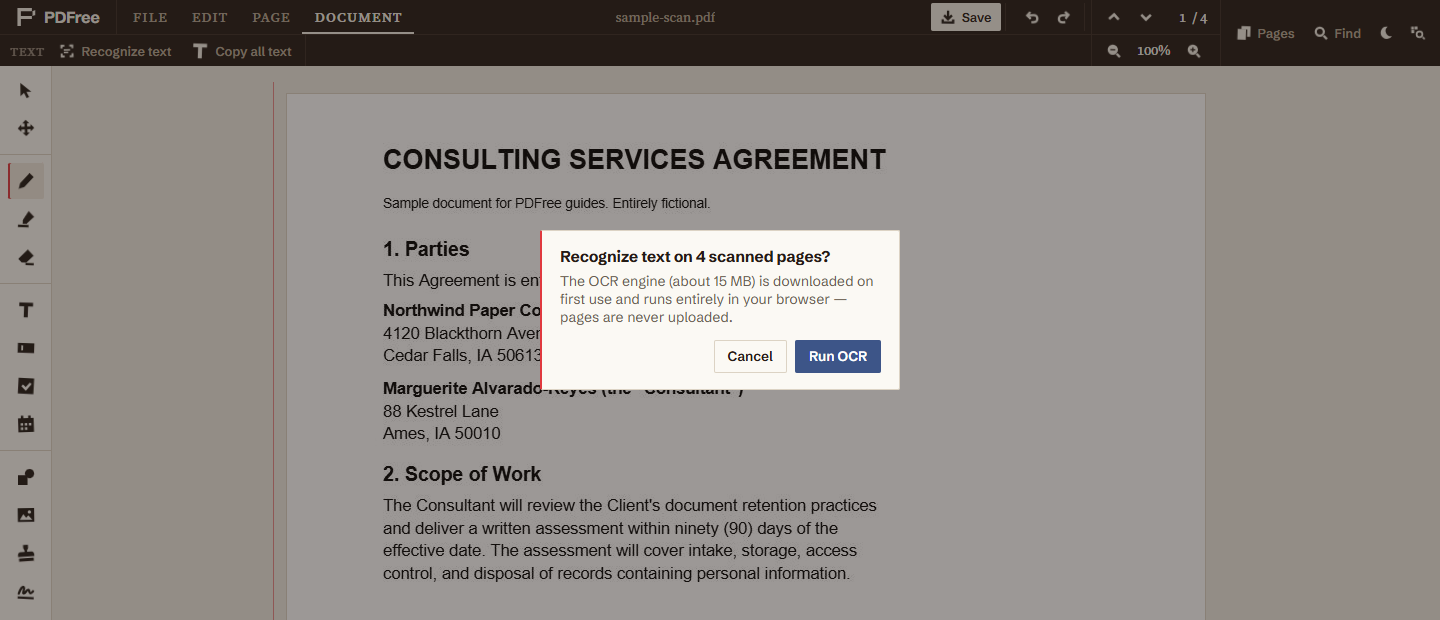
- Open the Document tab and choose Recognize textThe editor first checks which pages actually need it.
- ConfirmYou are told how many scanned pages were found and that the engine is about to download on first use. If every page already has selectable text, it tells you so and stops rather than doing pointless work.
- WaitA progress bar shows the page it is on and how far through that page it is. Recognition is genuinely slow, so budget several seconds per page and considerably more on a phone.
Pages that already have a text layer are skipped entirely. This matters for mixed documents, where a born-digital contract has a scanned signature page stapled to the end. Only the scanned page is processed, so the real text on the other pages is never replaced by a recognised approximation of itself.
What works afterwards
Once recognition finishes, the words are merged into the same structure the editor uses for ordinary PDF text. Everything that works on a normal document starts working on the scan:
- Select and copy a sentence straight off the scanned page.
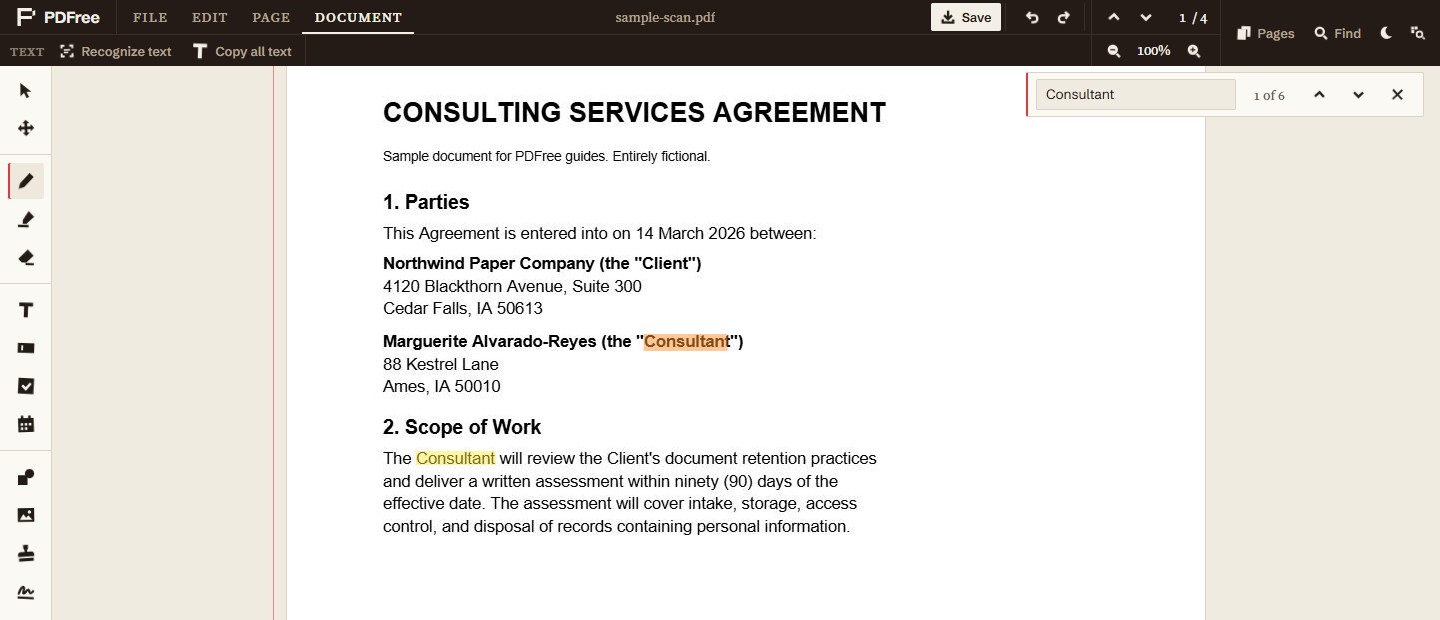
- Find jumps to matches, so you can search a 200-page scanned report.
- Highlight snaps to the words rather than being a rectangle you eyeball.
- Redaction can target actual words, which is the important one. Redacting a scan without OCR means drawing boxes by eye.
The invisible layer is written into the saved PDF, so the searchability travels with the file. Open the saved document in any other reader and it is searchable there too. You are not just making it searchable inside this editor; you are producing a genuinely searchable PDF.
Accuracy, and what breaks it
OCR is very good and not perfect, and the difference is almost entirely down to the quality of the scan rather than the software.
Clean, straight, high-resolution scans of printed text in a normal typeface come out close to flawless. Accuracy falls off with low resolution, pages scanned at an angle, heavy compression artefacts, unusual or decorative fonts, faint or photocopied originals, text over background images, and dense tables where column alignment confuses the reading order. Handwriting is not realistically recognised at all.
The practical consequence: if you are searching a document, near-perfect is fine, because you will find what you are looking for. If you are relying on the recognised text for something that has to be exactly right, read it before you trust it. And if you are redacting based on a search, search for several variants of the term rather than assuming one search caught every instance.
Current limits
Two things worth knowing before you start:
- English only. The recognition model is English. Text in other languages will produce poor results rather than an error message, which is worse, so check the output if your document is not in English.
- It is slow, and it is your device doing the work. That is the direct cost of not uploading. A server farm would be faster. It would also have your document. On a long document, start it and go and do something else.
Neither of these is a reason to avoid it for the common case, which is making an English scan searchable so you can actually work with it. Just know which case you are in.