Why covering text is not editing it
A PDF page is a list of drawing instructions: put this word at this position in this font. When a tool "edits" a word by drawing a white rectangle over it and new text on top, the original instruction is still there. The page looks right, but the old word can still be selected, found by search, copied out, or revealed by deleting the rectangle in any other editor. For a misspelled name that is merely untidy. For a wrong price in a quote, or a date in a contract, it is a document that says two different things depending on how it is read.
The Edit Text tool works on the instructions themselves. When you change a paragraph, the words it used to draw are removed from the page, and the new words are written in their place. There is nothing underneath to find.
Editing a paragraph
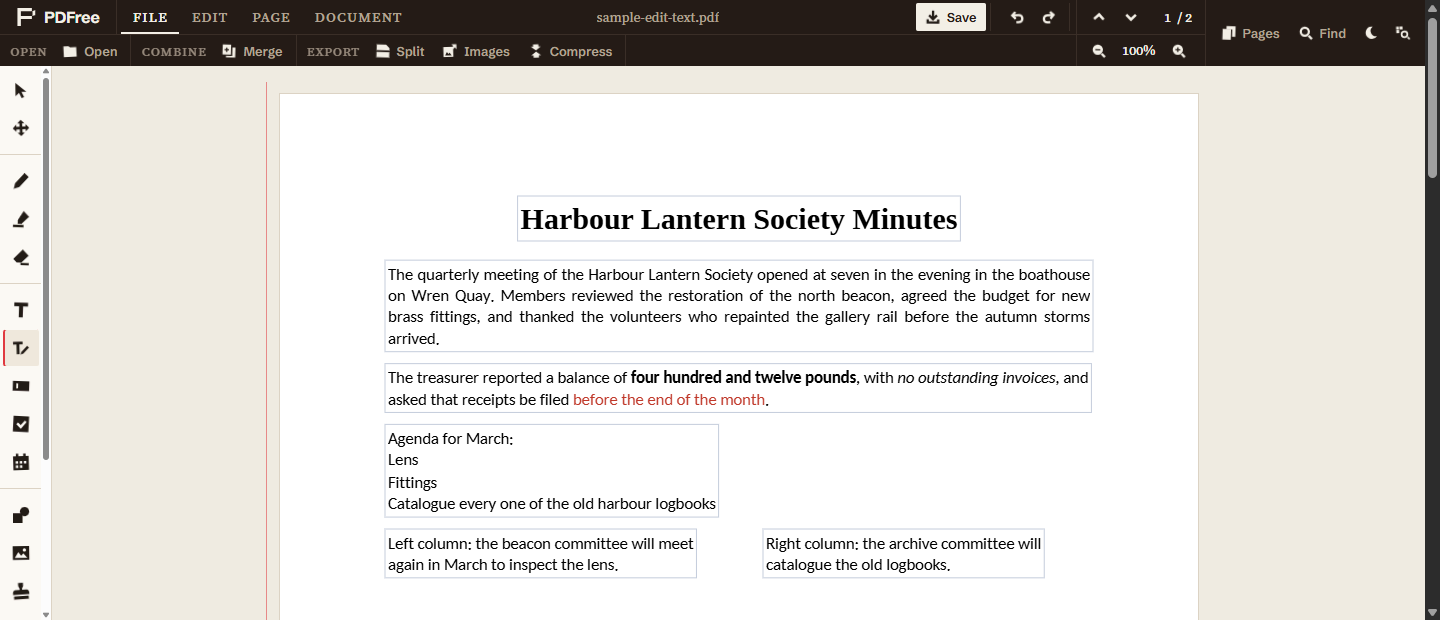
- Choose the Edit Text toolIt sits below the Text tool in the left-hand toolbar, and the shortcut is A. Every paragraph the tool can edit on the pages near your screen gets a faint outline, so you can see at a glance what is editable.
- Click the paragraphThe cursor lands where you clicked, and the paragraph becomes an editable box with the red Text tab open in the header.
- Type, delete, and styleEverything from text boxes works here: select words to make them bold, change the colour, or switch alignment. Bold, italic, and colour that were already in the paragraph are kept, run by run.
- Press Escape, or click elsewhereThe page redraws with your version. A paragraph you opened and left exactly as it was is put back untouched, so a stray click changes nothing.
Undo covers all of it, and you can come back to an edited paragraph later and change it again. Search within the editor finds the new words and no longer finds the ones you removed.
Keeping the document's own font
The hardest part of editing PDF text is the font. A PDF usually carries its fonts inside the file, but only a subset of each: the letters the document happened to use, and no others. A letter that never appeared in the original is simply not there to draw.
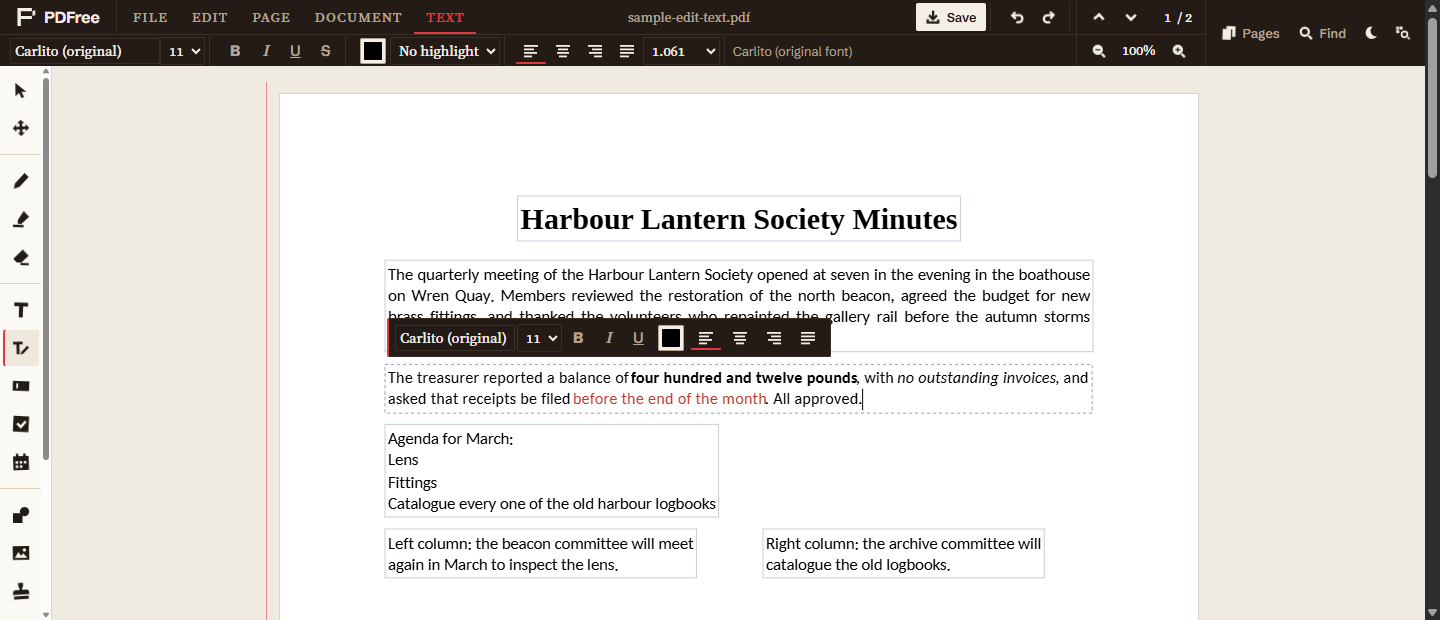
PDFree handles this in two steps. While every character in the paragraph exists in the PDF's own copy of the font, the paragraph keeps that font, so a corrected typo, a changed date, or a different figure is drawn and saved in exactly the same typeface as the words around it. The Text tab says so with a note such as Carlito (original font), and the font box shows the name with "(original)".
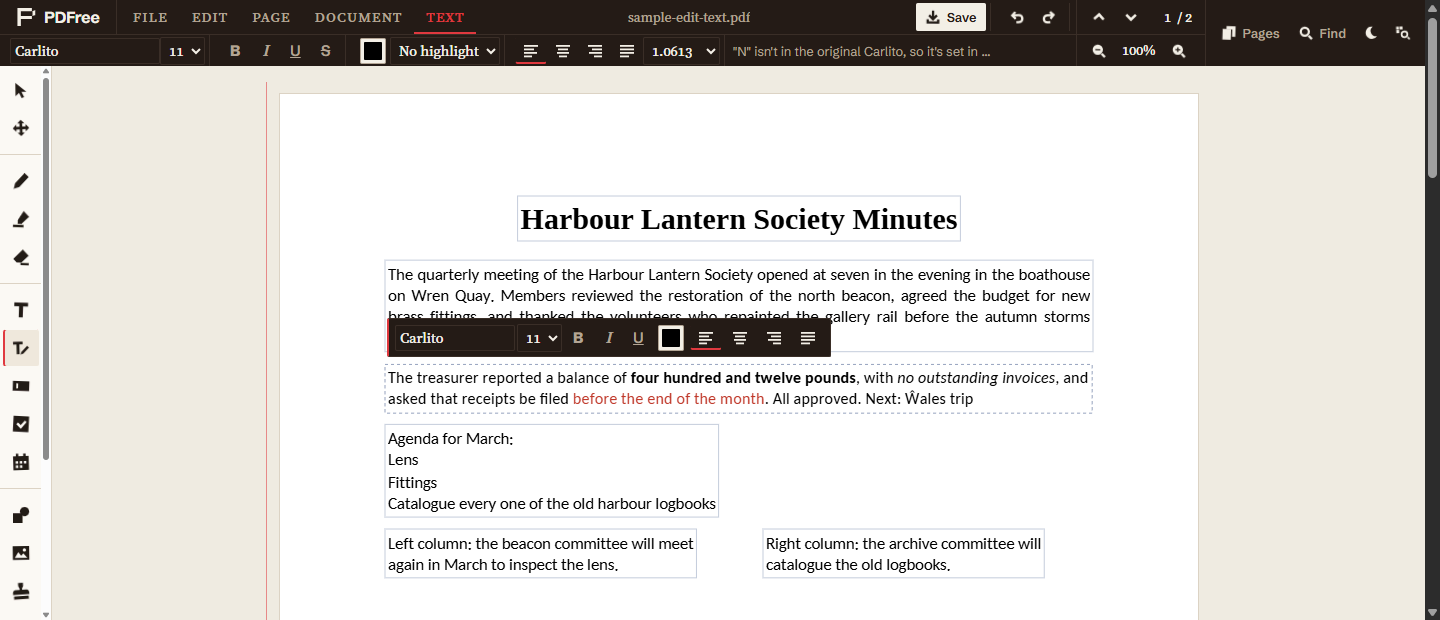
The moment you type a character the embedded copy does not have, the whole paragraph switches to the closest font in the editor's catalogue: Times New Roman to Tinos, Arial to Arimo, Calibri to Carlito, and so on. For the common Office fonts those matches are built to the same character widths, so the paragraph keeps its line breaks; in every case its first line stays on the same baseline and the line spacing is kept. The note explains exactly which character caused the switch. Delete that character again and the paragraph returns to the original font.
Why the whole paragraph rather than just the new letter? Because two typefaces mixed inside one paragraph look like a mistake even when each letter is close. Switching the paragraph keeps it internally consistent, which is what readers notice. Bold and italic follow the same rule: if the PDF has its own bold face with the letters you need, it is used; if not, the paragraph switches.
Some PDFs name a font without including it, typically the standard Helvetica or Times that every viewer is expected to supply. There is no original to keep in that case, so these paragraphs always use the matched font from the start.
When the new text is longer
An edited paragraph keeps its width and grows downward, exactly as a paragraph in a word processor would. What it does not do is push the rest of the page down: a PDF page has no idea which text follows which, so nothing else on the page moves.
If your longer paragraph now runs into the text below it, the editor outlines it in red and the Text tab says Overlaps the text below. Shorten the wording, or widen the box from its side handles so the extra words fit on the existing lines. Short fixes, the common case, never get near this.
Justified paragraphs stay justified, and the editor keeps the original line breaks where your text allows, so a paragraph you only corrected looks as it did.
What cannot be edited
The outlines show what can be edited. Clicking anything else gives a short message explaining why. The cases are:
- Scanned pages. A scan is a photograph of a page and contains no text at all. Recognising its text makes it searchable, but the words are still a picture, so there is nothing for Edit Text to change.
- Rotated or vertical text. Only text that reads left to right along the page can be edited for now.
- Text inside reusable graphics. Some PDFs draw text inside a self-contained graphic (a "form XObject") that the page places as one piece, often a letterhead or a footer repeated on every page. Editing inside those is not supported yet.
- Symbol and bitmap fonts. Dingbats and fonts drawn as tiny pictures have no letters to retype.
For any of these, you can still place new text on top with a text box; just be aware that the original words remain underneath.
What the saved file contains
When you save, each edited paragraph's old drawing instructions are removed from the page and the new text is written as real, selectable text. Where the paragraph kept its original font, the new words are written with the PDF's own font and nothing new is added to the file. Where it switched, the matched font is embedded, containing only the letters actually used.
Everything outside the edited paragraphs is left exactly as it was. The page is not re-rendered or flattened, so its other text, images, and vector drawings come through untouched.
Editing a paragraph removes the words it drew, but a PDF can hold the same information elsewhere: in its metadata, in bookmarks, or in an image of the page. When the goal is to make sensitive information unrecoverable rather than to correct it, use proper redaction, which is built for exactly that and checks the result.
As with everything in PDFree, the document never leaves your device: it is opened, edited, and saved in your browser.