Why black boxes fail
A PDF is not a picture of a document. It is a set of instructions: draw this glyph at these coordinates, in this font, at this size. When you add a black rectangle in a general-purpose editor, you have added one more instruction to that list. Draw a black rectangle here. The instruction to draw the text underneath is still there, unchanged, and it still runs. You just cannot see the result.
That means the text is fully recoverable by anyone who opens the file with something other than a
viewer. Selecting the region and copying it usually works. So does running pdftotext, or
opening the file in any editor that exposes the content stream, or in some cases just dragging the
rectangle aside. None of this is hacking. It is reading the file the way the format intends.
This is not a hypothetical failure mode. Redaction failures of exactly this kind have exposed witness names in filed court documents, unredacted salary figures in published contracts, and client data in regulatory filings, in every case because someone confident that the box was enough shipped a file where the text was still live underneath it.
What real redaction requires
There is only one standard that counts: after redaction, the characters must not exist in the file any more. Not hidden, not covered, not drawn in white on white. Absent.
In practice there are two honest ways to get there. You can rewrite the content stream, removing the specific glyphs and leaving the rest of the page intact, which is precise but fiddly and can go wrong on unusual fonts. Or you can render the page to an image and save that image in place of the original page, which discards the entire text layer of that page in one move. The second approach is blunter but much harder to get subtly wrong, and it is what PDFree does.
Redacting a PDF in your browser
Nothing here uploads. The file is opened and edited on your own machine, which matters more than usual for a document you are redacting, because by definition it contains something you do not want other people to have.
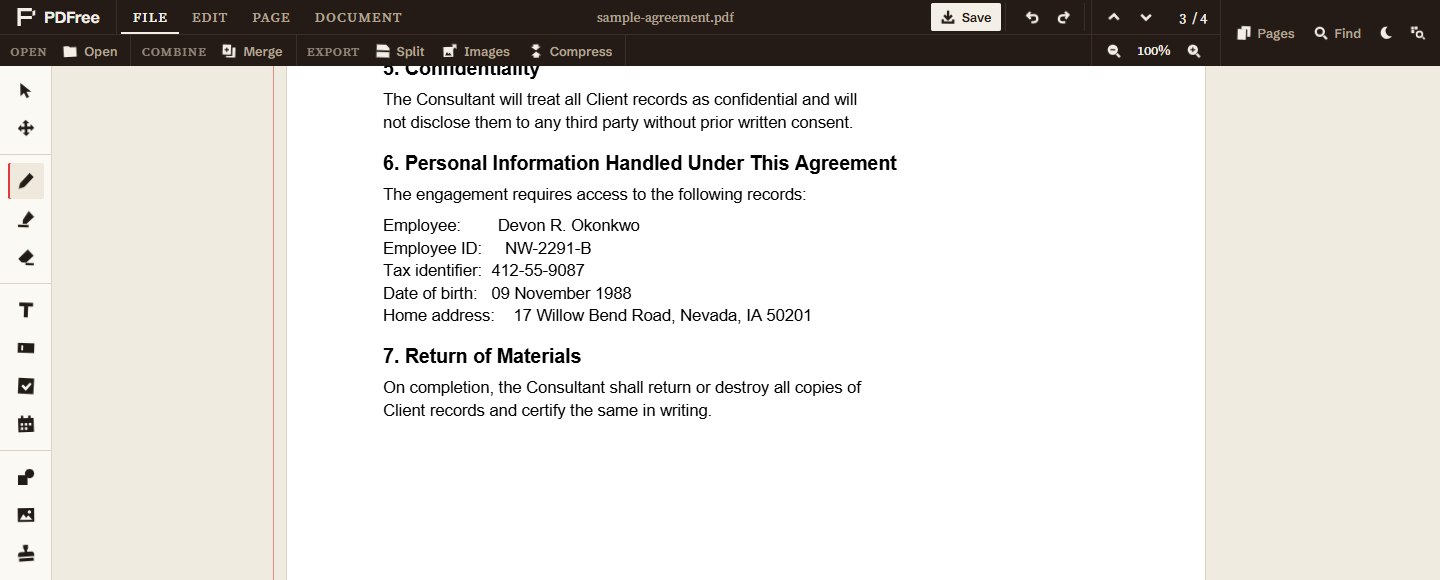
- Open the PDFDrop it onto the home page or choose it with the file picker. It loads locally and no copy is sent anywhere.
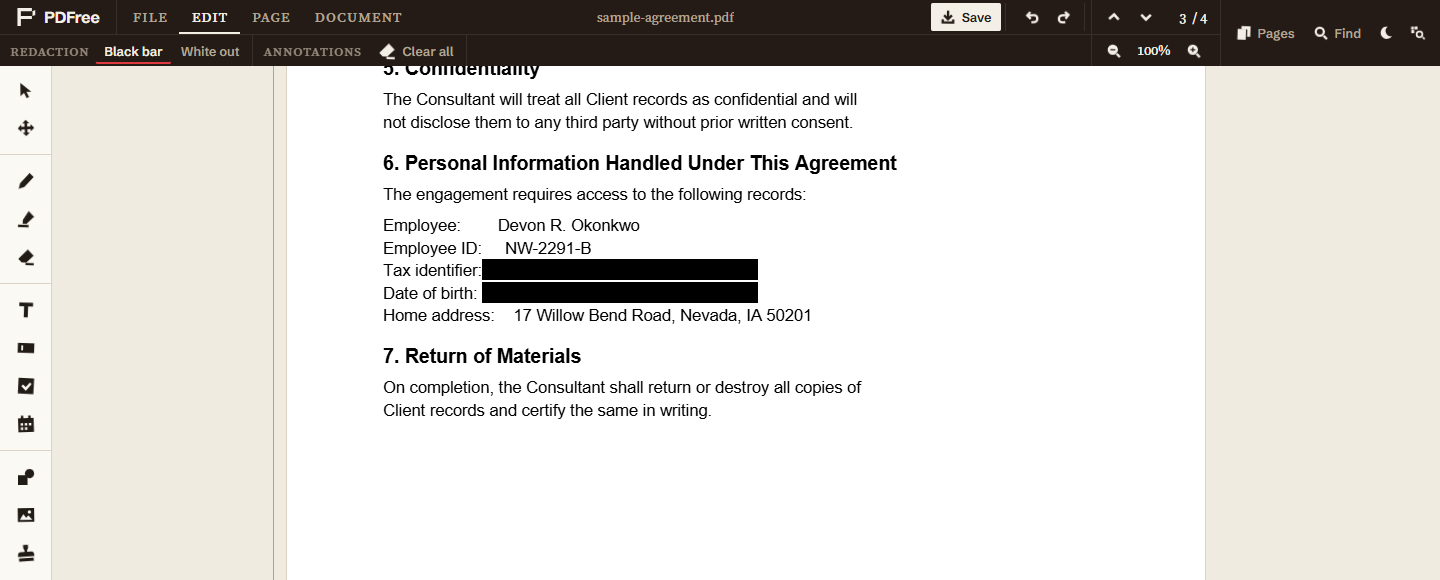
- Pick the redaction toolChoose black bar for a visible redaction, the convention for legal and FOIA work where the reader should see that something was removed. Choose white out when the removal should be invisible.
- Drag over what you want goneCover the full extent of the text, including any descenders and the trailing space. If a name wraps onto a second line, cover both lines.
- Work through every pageRedaction is per page. Check headers, footers, page numbers, and any table of contents or index that repeats the same information. This is the step people skip, and it is how redacted names reappear on page 40.
- Save the PDFThe removal happens on save, not while you are drawing. Until you save, the boxes are still just annotations.
What happens when you save
This is the part worth understanding, because it is the part that determines whether the redaction is real.
When you save, any page carrying at least one redaction is treated differently from the rest. That page is rendered to a canvas at double resolution and embedded back into the new document as a PNG image, replacing the original page entirely. Because the page is now an image, its text layer is gone in full. Not covered. Gone. There is no content stream left to recover glyphs from.
Discarding the whole text layer would normally mean losing the ability to select or search anything on that page, which is a real cost. So the text that was not under a redaction is measured against the redaction rectangles, split around them, and written back over the image as an invisible text layer, the same technique OCR uses. The words you kept stay selectable and searchable. The characters that sat under a black bar are never written back, because they were dropped along with the original page.
Pages with no redactions on them are copied across untouched, so the rest of the document keeps its real text, its fonts, and its file size.
When the save finishes, the editor tells you how many pages were flattened. Read that number. If you redacted something on three pages and it says one page was flattened, two of your redactions were not registered and you should go back and look.
How to verify it worked
Do not take anyone's word for this, including ours. The check takes fifteen seconds and you should run it every time on anything that matters.
- Reopen the saved fileUse a fresh viewer, not the editor you just saved from.
- Select all and copyPress Ctrl+A then Ctrl+C on the redacted page, or Cmd on a Mac.
- Paste into a plain text editorNotepad, TextEdit, anything that shows raw text.
- Search for what you redactedThe name, the number, the address. If it is not there, the redaction held. If it is, stop and do not send the file.
Redaction is not reversible, which is the whole point. Keep the original somewhere safe before you start, because there is no way to recover the covered text from the redacted output. That is the feature working correctly.
What flattening costs you
Being straight about the downsides, because a guide that only lists benefits is not useful:
- Redacted pages become images. The visible text on those pages is a picture, with an invisible layer over it for selection and search. Copy and paste still work. Reflow, live font rendering, and text-based accessibility tools work less well than on a native text page.
- File size grows on those pages. An image of a page is bigger than the instructions to draw it. A document with redactions on two pages out of fifty will barely change. A document redacted on every page will get noticeably larger. If that becomes a problem, see the guide on compressing a PDF.
- Only redacted pages are affected. This is deliberate. Flattening the whole document to be safe would cost quality and size everywhere for no benefit.
Black bar or white out
Both remove the text identically. The difference is purely what the reader sees, and it is a question of intent rather than security.
Use the black bar when the reader should know that something was removed. This is the convention in legal filings, FOIA responses, and discovery, where concealing the fact of a redaction is itself a problem. The bar is a signal, not just a cover.
Use white out when the removal should be invisible, for example clearing a stray field from a form before reuse, or removing an old address from a template. Be careful with this one on documents that go to other people: a gap where information used to be can be more revealing than a black bar, because the shape and position of the gap still tell a reader something.
Either way, the mechanism underneath is the same, and so is the verification step. Run the copy and paste check before the file leaves your machine.