What actually makes a PDF big
Almost always, it is images. A page of text is tiny, a few kilobytes of drawing instructions. A single photograph at print resolution can be several megabytes on its own. When a PDF is unexpectedly large, the cause is nearly always one of these:
- Scanned pages. Every page is a full-page photograph. A 40-page scan is 40 large images, and this is the most common reason by a wide margin.
- Images placed at far higher resolution than needed. A photo straight from a phone camera dropped into a document keeps all 12 megapixels even though it is displayed two inches wide.
- Embedded fonts. Usually modest, but a document embedding several full font families rather than subsets adds up.
- Retained revision history. Some editors append changes rather than rewriting the file, so a heavily edited document can carry versions of content you deleted long ago.
Knowing which one applies to your file tells you whether compression will help. If your 8 MB document is 8 MB because it is a scan, compression will help enormously. If it is 8 MB because it contains one enormous embedded font and forty pages of text, it will barely move.
How compression works here
Compression goes after the thing that actually makes PDFs big: the pictures inside them. Each photo or scanned page image is scaled down to a sensible resolution and re-encoded as a JPEG at the quality you choose. Everything else is kept exactly as it was.
That matters more than the size. The text in the compressed file is still real text: you can select it, search it, copy it, and a screen reader can read it. Vector drawings and fonts are not touched. The file is also repacked more tightly, which trims a little even from documents with no images at all.
Compressing a PDF
- Open the PDFLocally, as always. Nothing is uploaded.
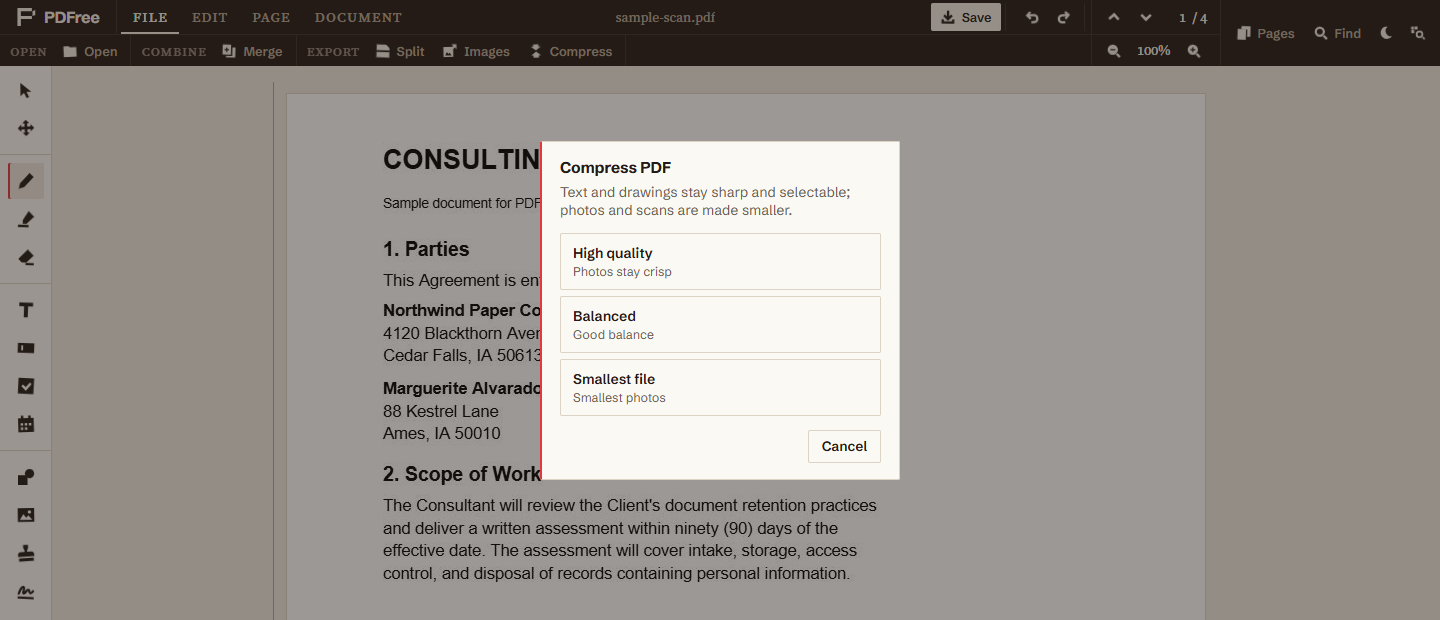
- Choose Compress in the File tabYou are asked to pick a quality preset.
- Pick a presetSee the guidance below. If unsure, Balanced is the sensible default.
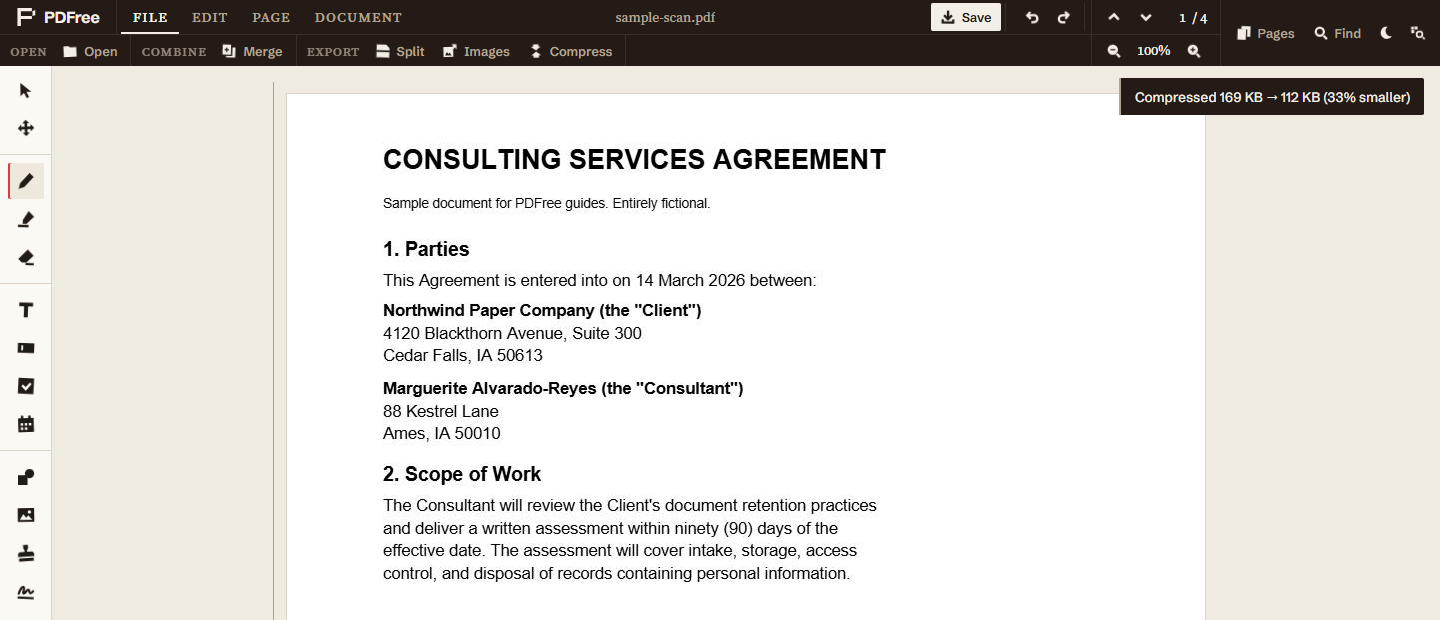
- Check the resultA new file downloads with
-compressedappended to the name, and you are told the before and after sizes and the percentage saved.
Your original is untouched on disk and the working document in the editor is unchanged, so you can try a different preset immediately if the first one was too aggressive.
Choosing a preset
- High quality keeps images up to 2,400 pixels on their long side, with light JPEG compression. Photos stay crisp enough to print. Use it when images matter, or when a scan contains small handwriting.
- Balanced keeps images up to 1,600 pixels with moderate compression. The right default for a document that will be read on a screen and emailed around.
- Smallest file keeps images up to 1,100 pixels with heavy compression. Use it when a hard size limit is the only thing that matters, for instance an upload form that rejects anything over 2 MB. Expect visible softening in photos on close inspection.
Start one step gentler than you think you need and check the output. Compression artefacts are much easier to see on the actual document than to predict from a description.
What you give up
Text survives compression untouched, but the photos and scans in the file do not: JPEG is lossy, and the detail it throws away does not come back. Compress last, as the final step before sending, and keep the uncompressed version as your working copy.
Compressing an already compressed file again compounds the damage, so always compress from the original rather than re-compressing a compressed file. Images with transparency, such as logos, are left as they are, because JPEG has no transparency and its artefacts show on sharp graphics.
If your goal is images rather than a smaller PDF, exporting pages directly as images is a better route than compressing and then extracting. That is covered in the image export guide.
| Document | Preset | Input | Output | Result |
|---|---|---|---|---|
| Text only | High quality | 5 KB | 4 KB | 23 percent smaller (repacking only) |
| Text only | Balanced | 5 KB | 4 KB | 23 percent smaller (repacking only) |
| Text only | Smallest file | 5 KB | 4 KB | 23 percent smaller (repacking only) |
| Scanned | High quality | 169 KB | 169 KB | no savings, already compact |
| Scanned | Balanced | 169 KB | 169 KB | no savings, already compact |
| Scanned | Smallest file | 169 KB | 112 KB | 33 percent smaller |
When compression will not help
If the output would be no smaller than the input, you are told so and no file is produced. The message says the PDF is already compact, and it is worth believing rather than trying a harsher preset out of stubbornness.
This happens for genuine reasons. A text-only document is already close to as small as it can be: there are no images to shrink, only a little repacking. A scan whose pages are already modest JPEGs has little left to give at the gentler presets, which is why the sample scan above only shrinks at Smallest file. A file that has already been compressed once is in the same position. In each case the right answer is that the file is not the problem, and you should look at whether it really needs to be smaller.
One case worth flagging: a document containing redactions is already partly rasterised, because redacted pages are flattened to images so the covered text is genuinely removed. Those pages are larger than text pages by design. Compressing afterwards can shrink them, and it will not undo the redaction, which remains permanent. See the redaction guide for what that flattening actually does.