When you actually want images
Converting a PDF to images throws away everything that makes it a PDF: selectable text, searchable content, crisp scaling at any zoom. Do it when you have a specific reason, not as a default.
Good reasons come up more often than you would think:
- A form that only accepts images. Plenty of upload forms take JPG and PNG and reject PDF outright.
- Inline display. An image shows up in the body of a message, a chat, or a slide. A PDF shows up as an attachment nobody opens.
- Slides and documents. Dropping a page into a presentation or a report is simpler as an image than as an embedded document.
- A page that should not be edited. An image of a page is inconvenient to alter casually. This is not security, and it is not redaction, but it does raise the effort.
Exporting the pages
- Open the PDFLocally, as always.
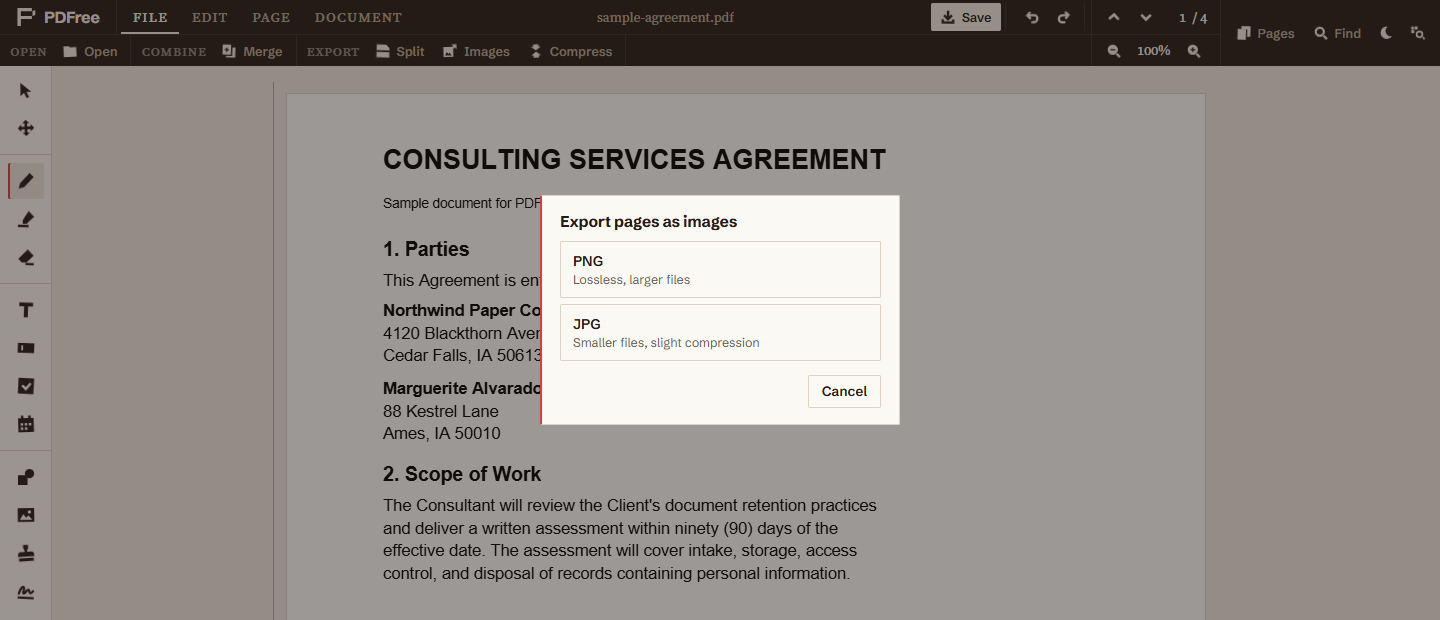
- Choose Images in the File tabYou are asked to pick a format.
- Pick PNG or JPGSee below if you are unsure.
- Let the downloads runEvery page is exported as its own file, named after the
document with the page number appended, so you get names like
contract-page-1.png.
This exports one file per page, so a 20-page document produces 20 downloads. Browsers commonly prompt for permission the first time a site downloads several files in a row. Allow it, or you will get page one and nothing else.
PNG or JPG
PNG is lossless. Every pixel comes out exactly as rendered, with no compression artefacts. It is the right choice for pages that are mostly text, line art, diagrams, tables, or anything with sharp edges. Text especially: JPEG compression puts visible fuzz around letter edges, and once it is there you cannot remove it. Files are larger.
JPG is lossy and much smaller. It is the right choice for pages that are dominated by photographs, where the compression is doing what it was designed for and the artefacts are hard to see. It is also the pragmatic choice when a file size limit is the binding constraint.
The default rule: text pages get PNG, photo pages get JPG. When a page is both and you cannot decide, choose PNG, because the failure mode of PNG is a file that is larger than it needed to be, while the failure mode of JPG is a page you have to export again.
| Format | Files | Total | Average page |
|---|---|---|---|
| PNG | 4 | 473 KB | 118 KB |
| JPG | 4 | 320 KB | 80 KB |
Resolution and quality
Pages are rendered at double their nominal size, which produces images at roughly 144 dots per inch rather than the 72 a PDF point implies. That is a deliberate middle ground: sharp enough to read comfortably on a high-density screen and to survive being scaled down, without producing enormous files.
JPG exports use a high quality setting, so the compression is light. You should not see obvious artefacts on a normal document, though you may on large flat areas of colour if you look closely.
This resolution is well suited to screens, messages, and slides. It is not intended for professional print reproduction, which generally wants 300 dots per inch or more. If the images are going to a printer for anything that matters, send the PDF instead and let the printer render it at whatever resolution their process needs.
Annotations are included
Exported images show the page as you see it in the editor, including everything you have added: highlights, text, signatures, stamps, shapes, and form entries. The image is a picture of the finished page, not of the original file.
Redactions are included too, and they behave correctly. Because the export renders the page as it appears, redacted content is not present in the exported image, since it is not drawn. The image contains no recoverable text at all, which is a property of it being an image rather than anything clever. If your goal is specifically to remove content, do it with the redaction tool rather than relying on export, because you want the removal to hold in the PDF as well.
Getting just one page
Export produces every page, which is unhelpful when you wanted page seven of a fifty-page document.
The straightforward route is to extract the page you want into its own PDF first, then export that. Two steps, no cleanup, and it avoids generating forty-nine files you immediately delete.
If you want the whole document as one smaller file rather than a folder of images, you probably want compression instead. It shrinks the photos and scans inside the PDF and keeps the text selectable, and gives you back a single PDF.