Split or extract
These get used interchangeably and they are not the same operation.
Extracting pulls a chosen set of pages out into a new file and leaves your working document alone. This is what you want when someone asks for "just the signature page" or "the section on liability". You end up with one new small file.
Splitting divides one document into several files by ranges, for example turning a combined statement into twelve monthly ones. You end up with several files and usually stop caring about the original.
Extraction is the more common need by a wide margin, so it is worth learning the range syntax properly. It takes about thirty seconds.
The page range syntax
Ranges are comma separated. Each part is either a single page number or two numbers joined by a hyphen. Page numbers start at 1, matching what you see on screen rather than a zero-based index.
4gives you page four on its own.1-3gives you pages one, two, and three.2,5-7gives you page two plus pages five through seven, in one file.1,1,2gives you pages one and two. Duplicates are ignored rather than repeated.
The whole range is validated before anything happens. If any part is malformed, or a number is below one, or a range runs backwards, or you ask for a page past the end of the document, the entire range is rejected and nothing is produced. You get an error telling you the document's page count rather than a file that quietly contains the wrong pages. That is the correct trade: a loud failure beats a silent one when the output is going to someone else.
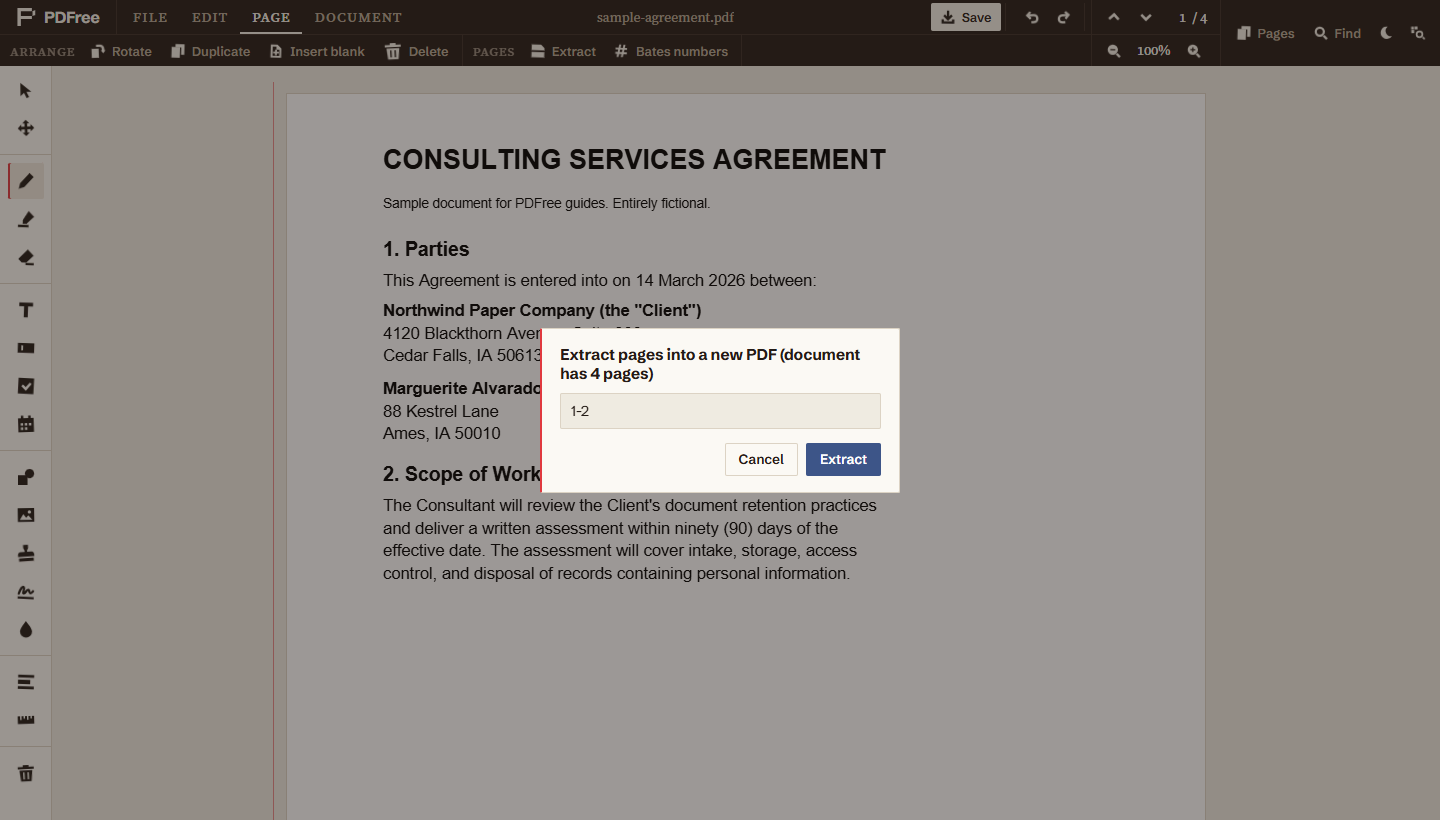
Extracting a range
- Open the PDFIt loads locally. Nothing is uploaded at any point in this process.
- Open the Page tab and choose ExtractIt sits with the other page operations at the top of the editor, rather than with the annotation tools.
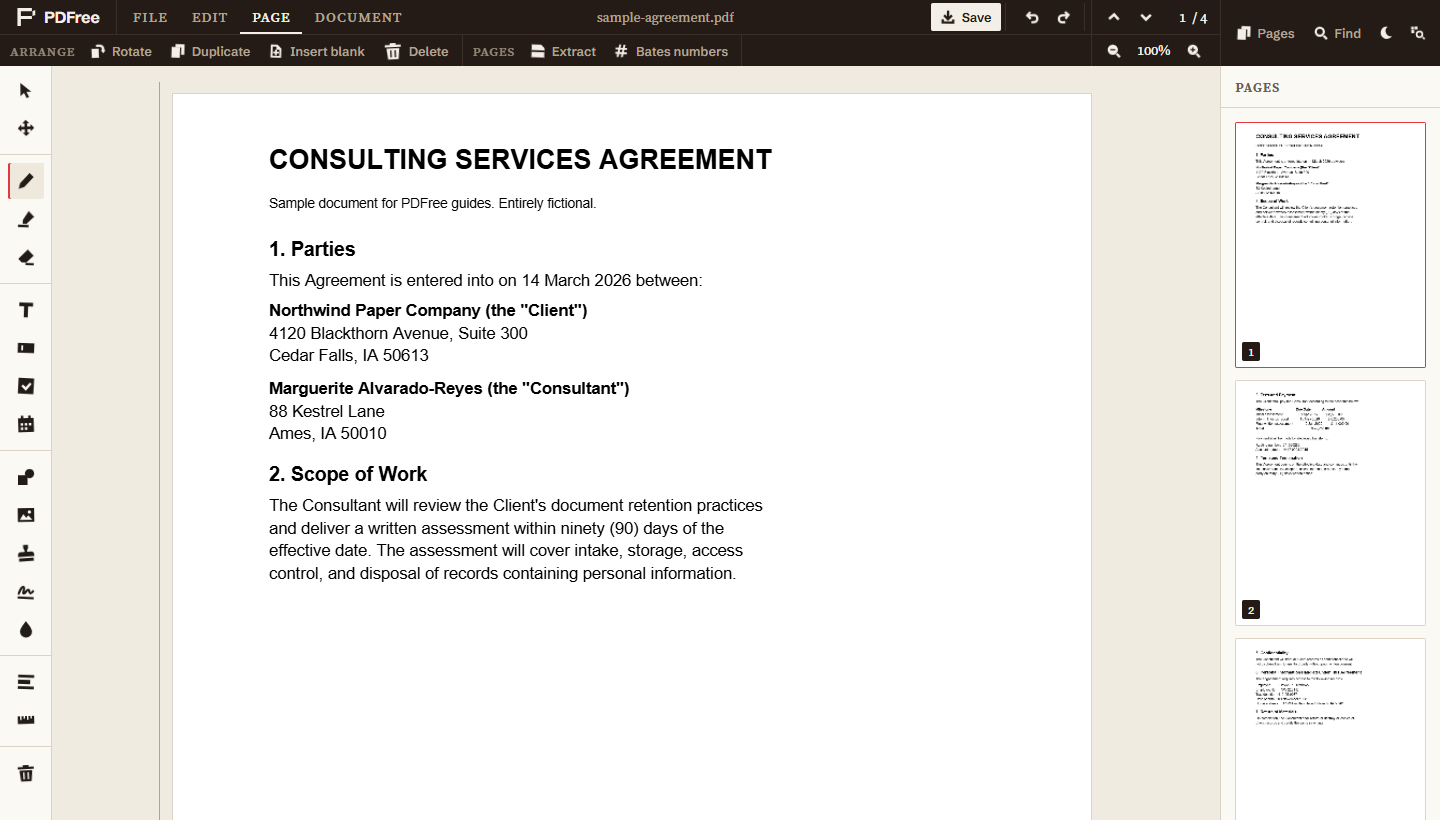
- Type the rangeUse the forms above. Check it against the page numbers shown in the thumbnail sidebar, not against the numbers printed on the pages, which often differ because of cover pages and front matter.
- ConfirmA new PDF downloads, named after your original with
-extractedappended, so it will not overwrite the source file.
Your working document is untouched. You can extract a different range immediately without reopening anything.
Reordering while you extract
A detail worth knowing, because it saves a separate step: pages come out in the order you type them, not in document order.
Asking for 3,1 gives you a two-page file with the original page three first and page
one second. So if you need a handful of pages in a specific non-sequential order, you can do the
extraction and the reordering in one move by typing them in the order you want them to appear.
5,2,9 produces exactly that sequence.
For anything more involved than a few pages, reordering by dragging thumbnails is easier to get right than a long range string, and you can see the result before you commit. Both routes are covered in the page operations guide.
What to check before you send it
Extraction is almost always the step immediately before sending a file to someone, which makes it the last chance to catch a mistake. Three things are worth thirty seconds:
- Open the extracted file, do not trust the range. Off-by-one errors are the most common failure here, usually because the number printed on the page differs from the page's position in the document. Look at the actual output.
- Check the last page as well as the first. People check that the extract starts in the right place and forget to check where it ends. A range that runs one page long can include the start of a section you did not mean to share.
- Check what is in the headers and footers. Extracted pages keep whatever was printed on them, including document titles, matter numbers, and internal reference codes that made sense inside the full document and reveal more than you intended outside it.
Extracting from a redacted document
If the pages you are extracting carry redactions, the extraction respects them. Any redacted page in the output is rebuilt as a flattened image exactly as it would be on a normal save, so the covered text is genuinely absent from the extracted file rather than merely hidden in it. The editor reports how many pages were flattened.
This matters because extraction is frequently the last step before sending something. A workflow of redact, extract the relevant pages, send is common in legal and HR contexts, and it would be a serious failure if the extract path skipped the removal that the save path performs. It does not. The verification advice in the redaction guide applies here too: open the extracted file, select all, copy, and confirm the text you removed is not in the clipboard.