The page sidebar
Most structural operations happen in the thumbnail sidebar, which you toggle with Pages at the top right of the editor. It shows every page in the document in order, and each thumbnail carries its own rotate and delete buttons.
Work here rather than in the main view. The sidebar shows you position and orientation at a glance, which is exactly what you need when you are fixing structure, and it makes it obvious when a document has, say, three copies of the same page because a scanner double-fed.
Nothing in this guide is written to disk until you save. Every operation below is reversible with undo, and closing without saving leaves the original file untouched.
Rotating a sideways page
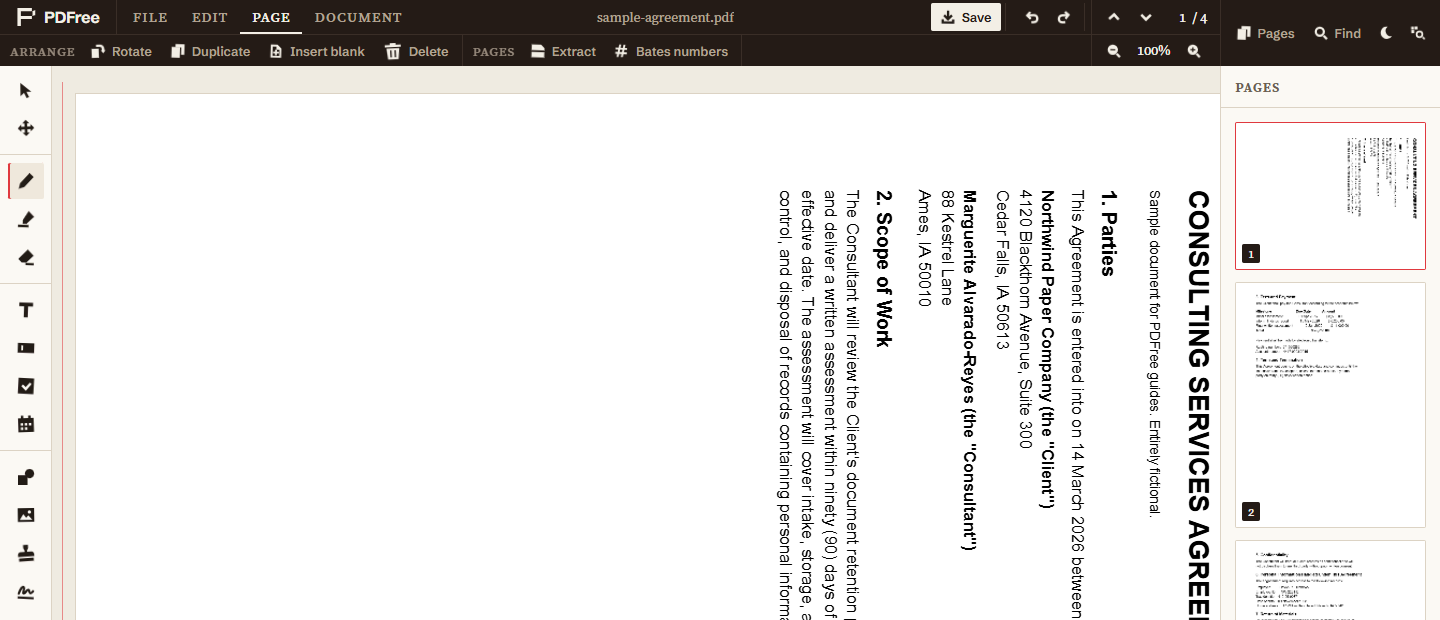
This is the most common structural problem, and it comes almost entirely from scanners. Feed a landscape page into a portrait scanner and you get a page that is technically correct and practically unreadable without turning your head.
- Open the sidebar and find the pageSideways pages are obvious in thumbnails.
- Click the rotate button on that thumbnailEach click turns the page 90 degrees clockwise.
- Click again as neededTwo clicks for an upside-down page, three for one rotated the wrong way.
Rotation applies to the single page you clicked, not the document. This is deliberate: mixed orientation is normal in scanned documents, and rotating everything to fix one page would create nine new problems.
Annotation coordinates are remapped when a page rotates, so existing marks do follow the page round. It is still easier to rotate first, because placing a signature or a text field on a sideways page means judging position at an angle, and small alignment errors are much harder to see that way.
Reordering by dragging
Drag any thumbnail to a new position in the sidebar and drop it. The rest of the pages shuffle to accommodate it and the document renumbers itself.
The common case is fixing a merge. Appending another PDF always adds its pages at the end, so if you needed a signature page in the middle of a contract, merge it in and then drag it from the end into place. That two-step approach is usually faster than trying to assemble documents in exactly the right order to begin with.
For a small number of specific pages you can also reorder while extracting, by typing the page numbers in the order you want them. That is covered in the split and extract guide. Dragging is better for anything involved, because you can see the result as you go.
Deleting pages
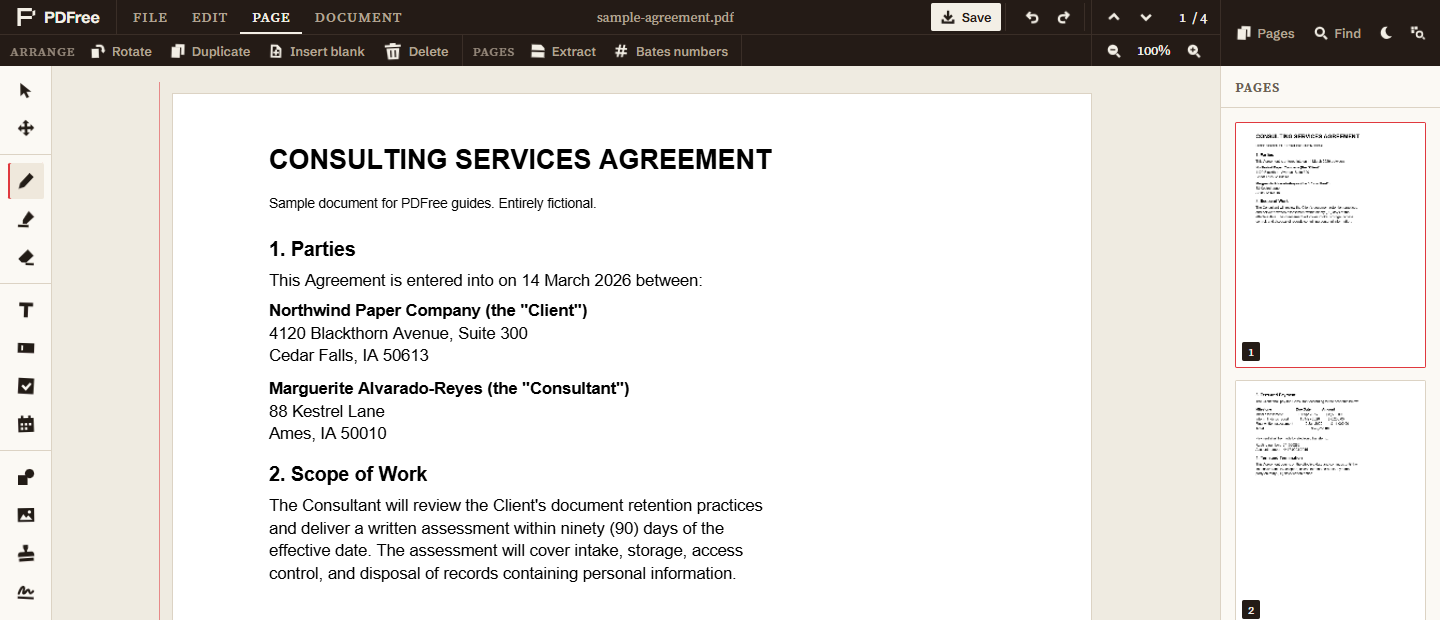
Each thumbnail has a delete button, and the same action is available as Delete in the Page tab for the page you are currently viewing.
Deletion is worth a moment of care, because it is the operation people reach for when preparing a document for someone else, which means the stakes are higher than usual. Two habits worth keeping:
- Delete from the bottom up. Removing page 4 renumbers everything after it, so a list like "delete 4, 9, and 12" goes wrong fast if you work downwards. Start at 12.
- Check the page after each one you delete. Content that continues across a page break is easy to orphan, leaving a document that reads as though a sentence was cut in half, because it was.
If your reason for deleting is that a page contains something the recipient should not see, think about whether deletion is actually the right tool. If the rest of the page needs to be produced, redaction is what you want. Deleting the page removes the evidence that anything was there, which in a legal or regulatory context can be a problem in itself.
Duplicating and inserting blanks
Two smaller operations, both in the Page tab, both applying to the page you are currently viewing.
Duplicate page copies a page and its annotations, placing the copy directly after the original. The practical use is a form you need to submit several times with different details: fill in the parts that stay the same, duplicate, then change the rest on the copy.
Insert blank page after adds an empty page of the same size. Useful for documents that will be printed double-sided, where a section needs to start on a right-hand page, and as somewhere to put a note or an attachment placeholder without disturbing the existing pagination.
What happens to your annotations
Annotations belong to their page, not to a position in the document. A highlight on page three stays on that page when you drag it to position ten, and travels with it through a merge. Duplicating a page copies its annotations along with it. Deleting a page deletes what was on it.
Rotation is the interesting case: annotation coordinates are remapped into the rotated view, so your marks turn with the page rather than staying put while the page moves underneath them.
One exception is worth knowing. If a page carries a redaction, saving rebuilds that page as a flattened image so the covered text is genuinely gone. That happens regardless of how much you have rotated or reordered, and the editor tells you how many pages were flattened when you save.