What a watermark is here
A watermark is diagonal text drawn across the page, semi-transparent, sitting over the content rather than behind it. It is placed where you click, at a fixed angle, in grey, at an opacity chosen so the words underneath stay readable through it. The default text is DRAFT, because that is what most people want most of the time.
It is an annotation, in the same family as a highlight or a stamp. That has a few useful consequences. It lives on its page and travels with that page if you reorder the document. The eraser removes it in one touch rather than making you undo your way back to it. And nothing about it is committed to your file until you save, so you can place one, look at the result, and remove it again without having touched the original.
Adding a watermark
- Open the PDFDrop it on the home page or choose it with the file picker. It loads on your own machine and no copy leaves it.
- Pick the watermark toolIt sits with the other annotation tools down the left of the editor.
- Click where you want it centredThe click point becomes the middle of the text, so aim at the centre of the page rather than a corner unless you want it off to one side.
- Type the wordingA prompt appears with DRAFT already filled in. Accept it or replace it with your own text.
- Check it against the contentLook at whether the text underneath is still comfortably readable. If the watermark lands somewhere awkward, erase it and click again.
- Save when the document is rightThe watermark is written into the file at that point and not before.
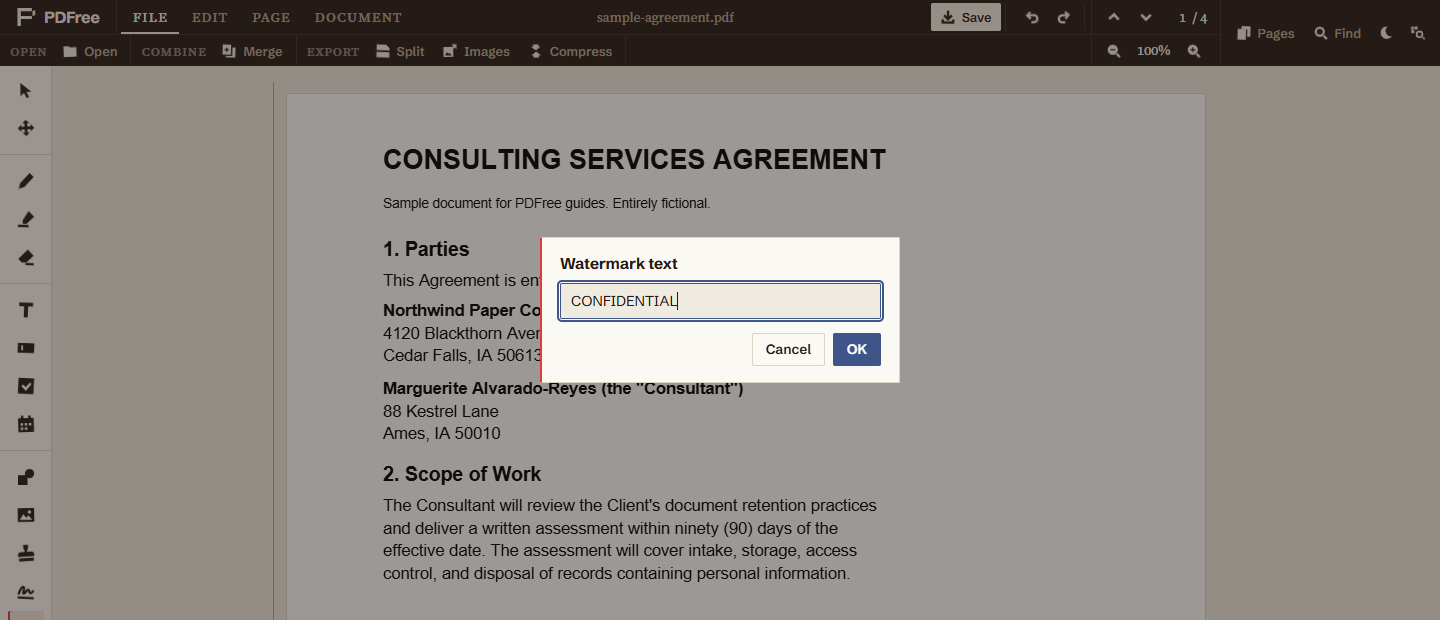
Choosing the wording
Short wording works better than long. The text is sized relative to the page and set at a diagonal, so a single word spans the page cleanly while a sentence has to be small to fit, which defeats the purpose. DRAFT, CONFIDENTIAL, INTERNAL, SAMPLE, VOID and COPY all do their job in one glance.
Wording that carries a date or a name is worth considering when the document is going to more than one person. DRAFT 3 is more useful than DRAFT to someone holding two versions. A recipient's name across a document is the traditional way of making a leaked copy traceable, and it works to the extent that people know you did it, which is really a deterrent rather than a control.
Avoid wording that could be mistaken for part of the document. A watermark reading PAID on an invoice is ambiguous in a way that PAID IN FULL 12 MARCH is not, and the ambiguity is the kind that surfaces during an argument about money.
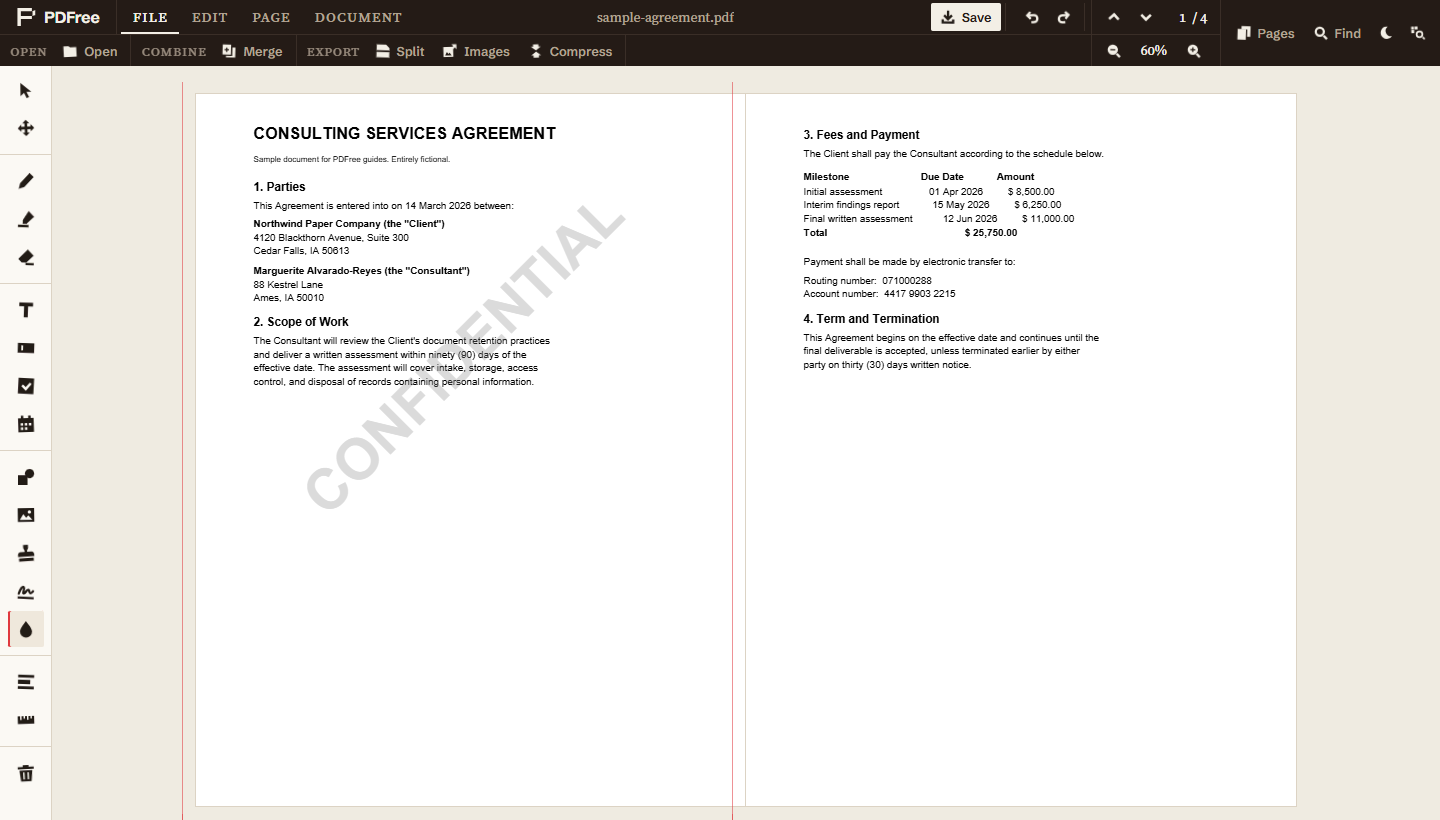
Covering more than one page
Each watermark is placed by a click and belongs to the page you clicked on. There is no single action that stamps every page at once, so a ten page document means ten clicks, one per page.
That is genuinely more work on a long document, and worth knowing before you start rather than discovering at page forty. It also has an advantage that is easy to overlook: pages do not have to carry the same watermark. An appendix can be marked differently from the body, a single page can be marked CONFIDENTIAL while the rest is not, and the cover page can be left clean.
If only part of a long document actually needs marking, it is often faster to extract those pages, mark them, and treat them as their own document. The guide on splitting and extracting pages covers that.
What the recipient receives
When you save, annotations are composited onto the page and written into the file. The watermark arrives as part of the page image rather than as a separate object that a viewer can toggle off. Your recipient cannot uncheck a layer and read a clean copy, and it will print exactly as it appears on screen.
It is worth being precise about what that does and does not mean. The watermark is genuinely part of what is drawn. It is not a piece of viewer decoration and not metadata. But it is drawn over the content, which continues to exist underneath it, exactly as before. Nothing beneath the watermark has been removed.
Why a watermark is not security
This is the misunderstanding worth heading off, because people reach for watermarks at exactly the moment they are worried about a document escaping.
A watermark communicates. It does not restrict. Anyone holding the file still has every word of the content, can still select and copy the text underneath, can still crop the page, and can still photograph the screen. Marking a page CONFIDENTIAL does not make it confidential. It informs an honest reader that it is meant to be, which is valuable, and does nothing whatsoever to a dishonest one.
The distinction matters because the two needs get confused. If your concern is that a reader might forward a draft and cause confusion about which version is current, a watermark is the right tool and it solves the problem. If your concern is that specific information in the document must not reach the reader at all, a watermark is the wrong tool and using it will leave you feeling protected without being protected.
What to use instead
When the information itself must not be readable, the operation you want is redaction, which removes the content rather than covering it. Drawing any opaque shape over text, watermark or otherwise, leaves the text intact and recoverable underneath. The redaction guide explains why that is, and how to verify the text is genuinely gone rather than merely hidden.
When you want a short label in a corner rather than large text across the page, a stamp fits better. When you want to mark up a document for a colleague, highlights and notes read as commentary in a way a page-spanning watermark does not.
All of this happens on your own machine. The document is not uploaded, which is the point when the thing you are marking is an unreleased draft, an internal memo, or a contract that is still being argued over. The longer version of that argument is here.