What you are actually measuring
A PDF page has a real, fixed size recorded inside the file. That size is stored in points, the typographic unit the format is built on, and there are exactly 72 of them to an inch. A US Letter page is 612 by 792 points. An A4 page is 595 by 842. This is not a rendering detail or an estimate. It is a property of the document, and it is identical whether you open the file on a phone or project it onto a wall.
When you measure something on a page here, that is the geometry you are measuring. You are asking how far apart two things are on the physical page, in the page's own terms. The answer is the number you would get by printing the page at its true size and laying a ruler across it.
That distinction matters more than it sounds like it should, and it is where on-screen measuring usually goes wrong. A screen has no fixed relationship to a page. Zoom in and everything grows in pixels while the document has not changed at all. A tool that reports what it sees on screen is reporting a fact about your zoom level, not about the document.
Measuring a distance
- Open the PDFDrop it on the home page or pick it with the file chooser. It is read on your own machine and no copy is sent anywhere.
- Pick the measurement toolIt sits with the other tools down the left of the editor. Choosing it opens the Edit tab at the top, which offers two modes, Distance and Area.
- Choose DistanceThe units sit right beside it in the Edit tab.
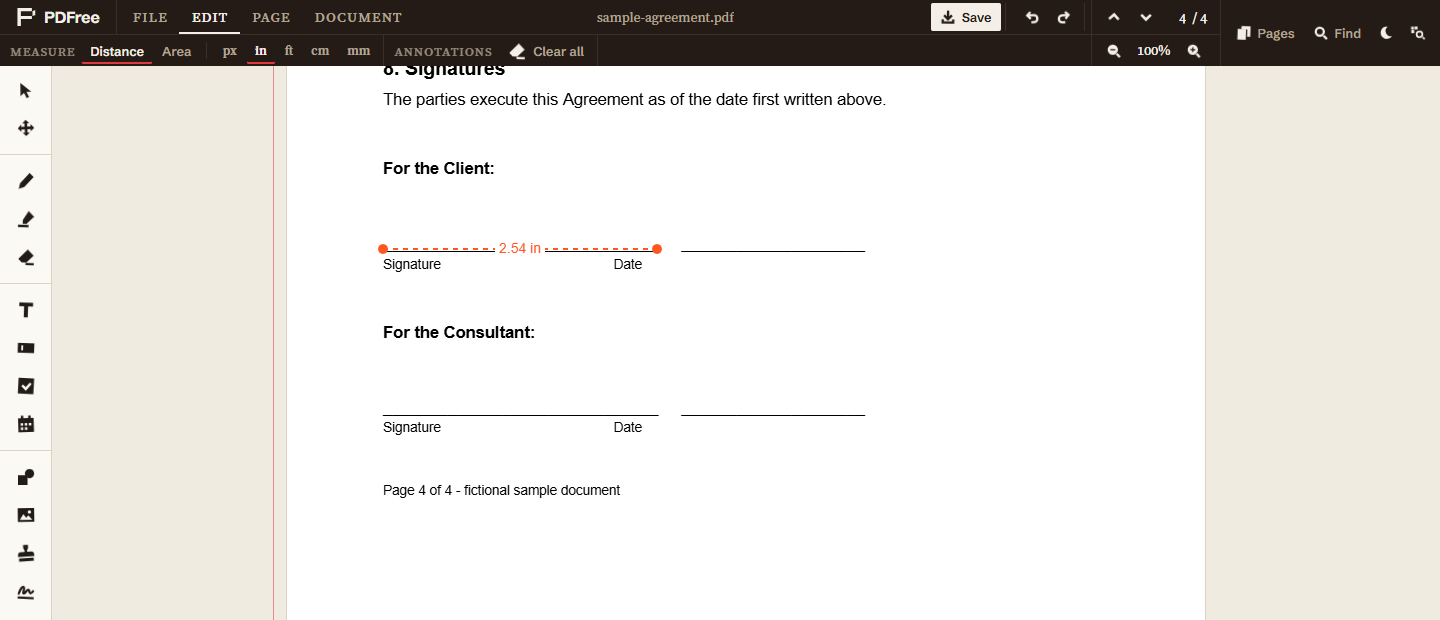
- Drag from one point to the otherPress where you want to start, drag, and release where you want to finish. A dashed line follows the cursor with a dot at each end, so you can see exactly what you are measuring before committing to it.
- Read the labelWhen you release, the measurement is written along the line and stays on the page.
A measurement behaves like any other annotation once it exists. It belongs to its page, it survives zooming and page reordering, and the eraser removes it if you decide you do not want it. Nothing is written to your file until you save.
Measuring an area
Area works by outlining a shape rather than dragging a line. Choose Area instead of Distance, then click each corner of the region in turn. Every click adds a vertex and the outline builds up as you go. To finish, click back on your first point and the shape closes.
The shape does not have to be a rectangle. It can be any polygon with at least three corners, which is the whole reason it is built click by click rather than dragged as a box. An L-shaped region, a trapezoid, the irregular footprint of an illustration that is not square: each is a handful of clicks. The area is computed from the corner coordinates themselves, so a concave outline is measured correctly rather than being quietly treated as its bounding box.
The result is written in the middle of the shape, in your chosen unit, squared. Outline the whole of a US Letter page and it reads 93.5 square inches, which is 8.5 multiplied by 11, exactly as it should be. That is a useful sanity check the first time you use it.
Choosing a unit
Five units are available, and you switch between them in the Edit tab while the measurement tool is active: pixels, inches, feet, centimetres and millimetres.
Inches and millimetres are the ones to reach for when the document is going to be printed, because those are the units a print job gets specified in. Centimetres suit general document work. Feet exist for the case where a page represents something much larger than itself, covered in the next section. Pixels are counted at the web's standard of 96 to an inch, which means a pixel measurement is a real length rather than a screen artefact, and it is the right choice when the page is headed for a screen instead of a printer.
All five describe the same underlying quantity, so they agree with one another exactly. The width of a Letter page reads as 8.5 inches, 0.7083 feet, 21.59 centimetres, 215.9 millimetres, or 816 pixels. Those are five ways of writing one number, and if they ever disagree, something is wrong.
Why the reading does not move when you zoom
This is the part worth understanding, because it separates a measuring tool from a number that merely looks like one.
The page you see is drawn onto a canvas sized to suit your current zoom. At 200 per cent the canvas is twice as many pixels across. A measurement taken in raw canvas pixels would therefore double, even though the document has not changed by a thousandth of an inch, and would halve again when you zoomed back out. The tool would be reporting the viewport rather than the page.
So the measurement is converted out of canvas pixels into the page's own points before it becomes inches or centimetres. The render scale is divided back out, leaving a quantity that belongs to the document rather than to the display. Only then is the unit applied, at 72 points to the inch, because that is the conversion the PDF format itself defines.
The practical result is that you can zoom in as far as you like to place your endpoints precisely, and get the same number you would have got measuring clumsily at 50 per cent. Zoom becomes purely a question of how accurately you can click, which is what it should have been all along.
Scale drawings, and the arithmetic you do yourself
A floor plan, a site drawing or a map represents something far bigger than the sheet it is printed on. A plan at 1:50 means one unit on the paper stands for fifty in the building.
The tool measures the sheet, not the building. There is nowhere to tell it the drawing's scale, so it will faithfully report that a wall is 2.4 inches long on the page and leave the rest to you. That is one multiplication: 2.4 inches at 1:50 is 120 inches, or ten feet.
The reliable way to do this is to ignore the stated ratio and derive your own. Find the drawing's scale bar, or a dimension already printed on it, measure that known length, and compare. If a line labelled twenty feet measures 4.8 inches on the page, then every page inch is 4.167 feet and you have a conversion factor for the whole sheet. This beats trusting the ratio written in the title block, because a plan that has been printed to fit a different paper size is no longer at the scale it claims, and the scale bar is the one element that was resized along with the drawing.
What this does not do
It does not apply a drawing scale for you, as above. Every reading is a measurement of the page.
It does not snap to lines, corners, or the edges of objects on the page. Your endpoints land exactly where you click, so accuracy comes from zooming in before you place them. For a fine measurement, zoom first and click second.
It does not measure curves. A distance is a straight line between two points and an area is a straight-sided polygon, so a curved boundary has to be approximated with enough short segments to be close enough for your purposes.
It does not read dimensions already printed on the drawing. If a number is written on the page, that number is text, and it remains more authoritative than anything you measure, because it is what the person who drew it intended. Measure to check a printed dimension, not to replace it.
As with everything else here, the measuring happens on your own machine. The document is never uploaded, which matters for exactly the kind of file people tend to measure: unreleased drawings, plans for a building that does not exist yet, layouts under embargo. The longer argument for that is here.